
System Overview
Al-Shamel ADVISOR is an integrated platform for managing HR, attendance, payroll, accounting, sales and inventory and vehicles, with an Employee Portal on mobile. Each company's data is completely separate, and you can manage several companies from a single account.
How to Move Around the System
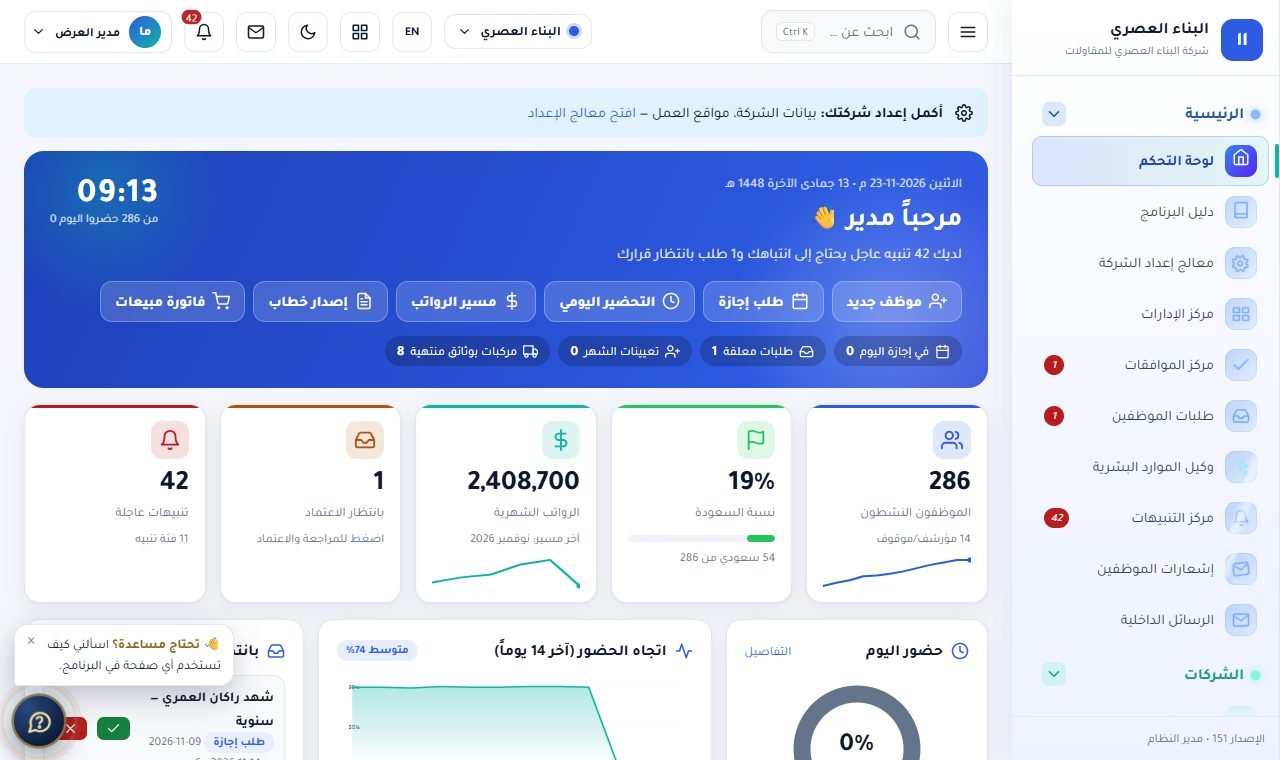
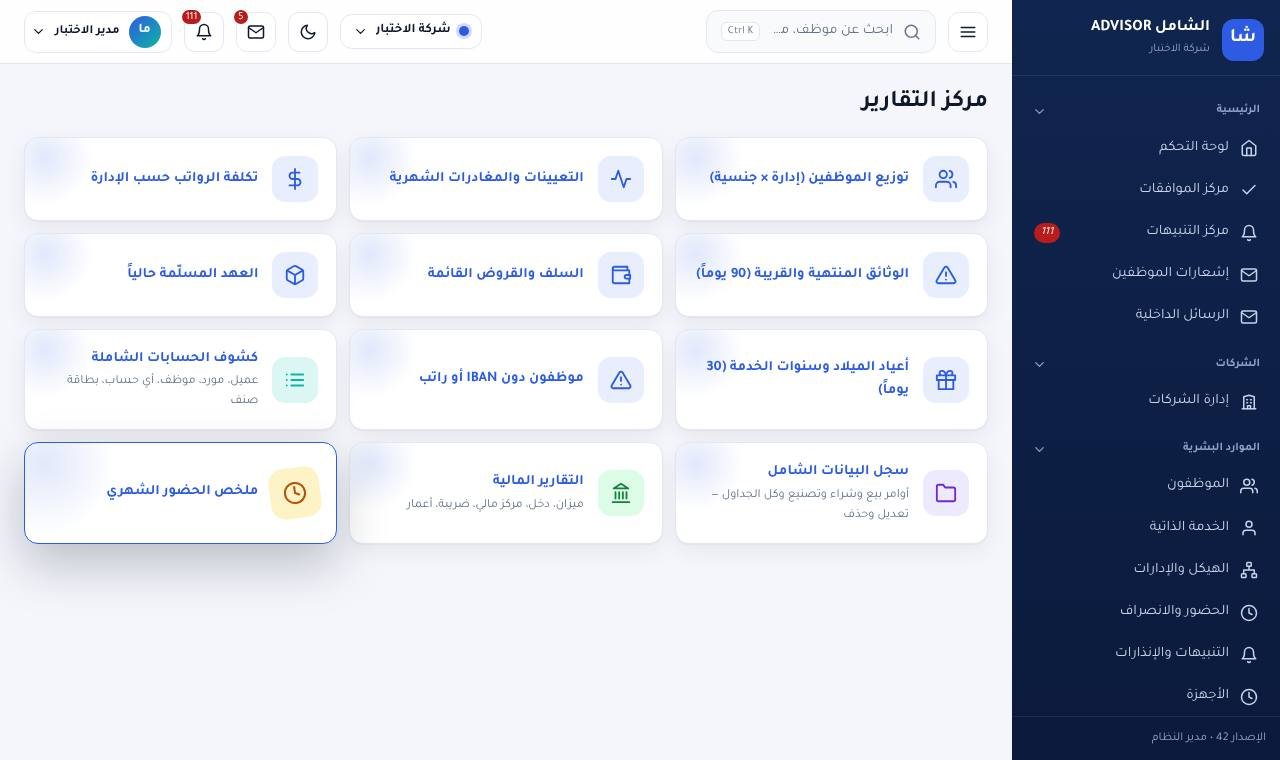
- The side menu is divided into groups: Home, Companies, HR, Compliance, Vehicles, Finance, Sales & Purchasing, System. You only see the pages allowed for your role.
- Top search bar (or Ctrl+K): search by employee, vehicle, customer or page name and jump straight to it.
- Company menu at the top of the screen: switch between the companies you have access to. The bell is for alerts, the envelope for internal messages, and the crescent switches between light and dark mode.
- Your personal menu (top corner): site appearance, change password, Program Guide, lock screen, sign out — after signing out you return to the site's home page.
- The EN / عربي (Arabic) button at the top of the screen switches the whole system between English and Arabic, and the pulsing help button at the bottom corner answers "How do I…" on any page.
Roles in the System
| Function / button | What it does |
|---|---|
| System Administrator | Full permissions over companies, users and settings. |
| HR / Accountant / Sales … | See only the sections allowed for their role; configured from Settings → Users. |
| Employee | Enters the Employee Portal only and sees only their own data and requests. |
Quick Start — Your First Day in the System
Ten steps to get your company ready to work. You will also find them inside the program on the "Program Guide" page with interactive guided tours.
Steps
- Company setup wizard: name, commercial registration, tax number, logo and address.
- Enabled modules: enable only what you need (HR, Finance, Sales…) from Settings → System Modules.
- Users and permissions: add your team with roles (Finance Manager, HR, Accountant…) — roles also determine the signature names on printouts.
- Employees: add them one by one or import them from Excel in one go.
- Work locations and shifts: define the punch range on the map, working hours and shifts.
- Employee Portal: create employee accounts so they can punch in and submit requests from their phones.
- Finance: apply the "ADVISOR Unified Chart of Accounts", and add banks, cash boxes and the fiscal year.
- Opening balances: record the opening journal entry and customer and supplier balances.
- Approval chains and signatures: define who approves the payroll run and journal entries, and the names of the signature boxes.
- First payroll run: create it at month-end and approve it — journal entries are posted automatically.
Search Options & Quick Pickers
Every list, report and statement has a "Search options" panel with fields that fit that screen, a Search button and a result count, followed by a "Search results" card for printing and export.
The search options panel
- In reports: fields follow the report columns — invoice/voucher/entry number from and to, code from/to, dates, amount from/to, and lists for status, department, warehouse and item category/group/section. Filters also apply to print and export.
- In lists (employees, invoices, vouchers, items, journal…): general search + the list filters + number and date ranges where available. View modes (table, cards, compact, by department, list) are in the "Search results" header.
- Account statements (ledger, comprehensive, employees): entry/document number from/to, description contains, movement type (debit/credit) and amount from/to.
- The arrow at the top collapses the panel; your choice is remembered.
The "Choose employee" window
- Any employee dropdown in the system (forms, reports, statements) opens a search window: name, employee no., ID, department, position, status.
- Results appear instantly as you type; click a name or press Enter to choose, and use the arrow keys to move.
- In search options: number + name pickers (⊞ for the list) for customer, supplier, item, account and vehicle.
Home Page and Free Trial
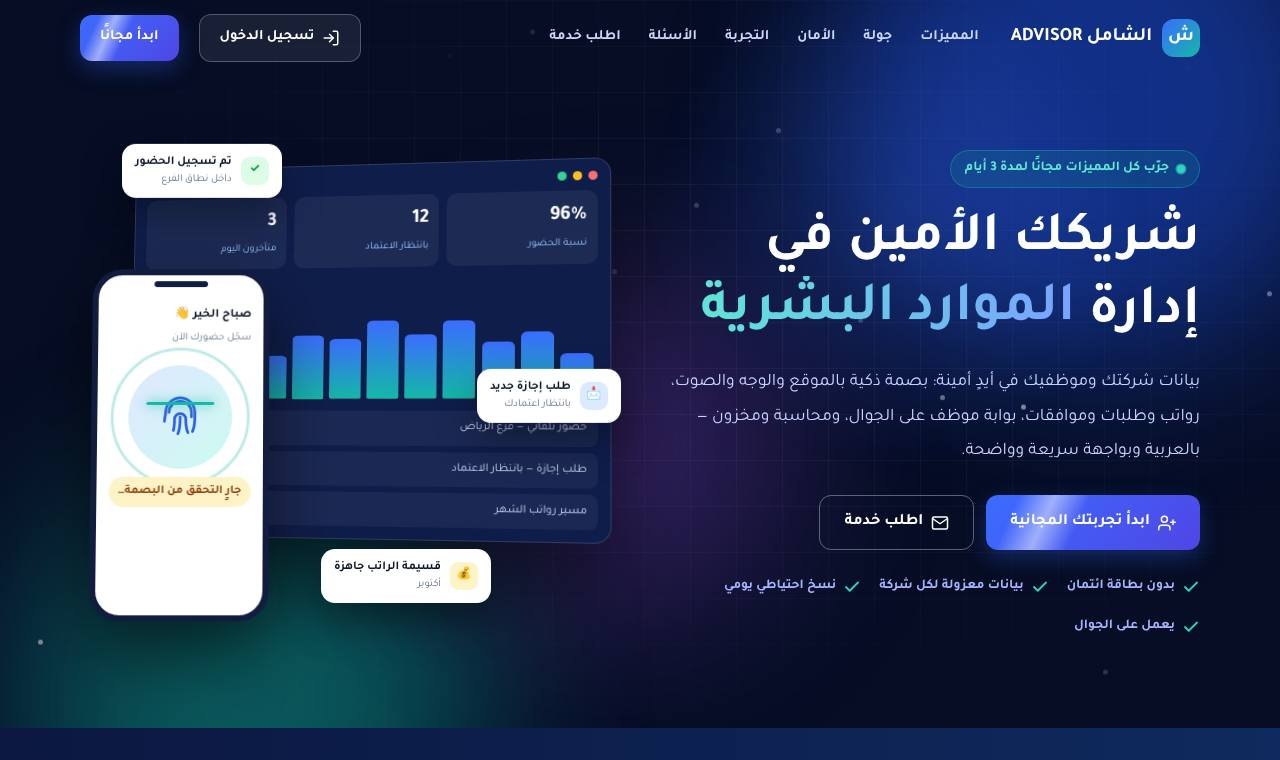
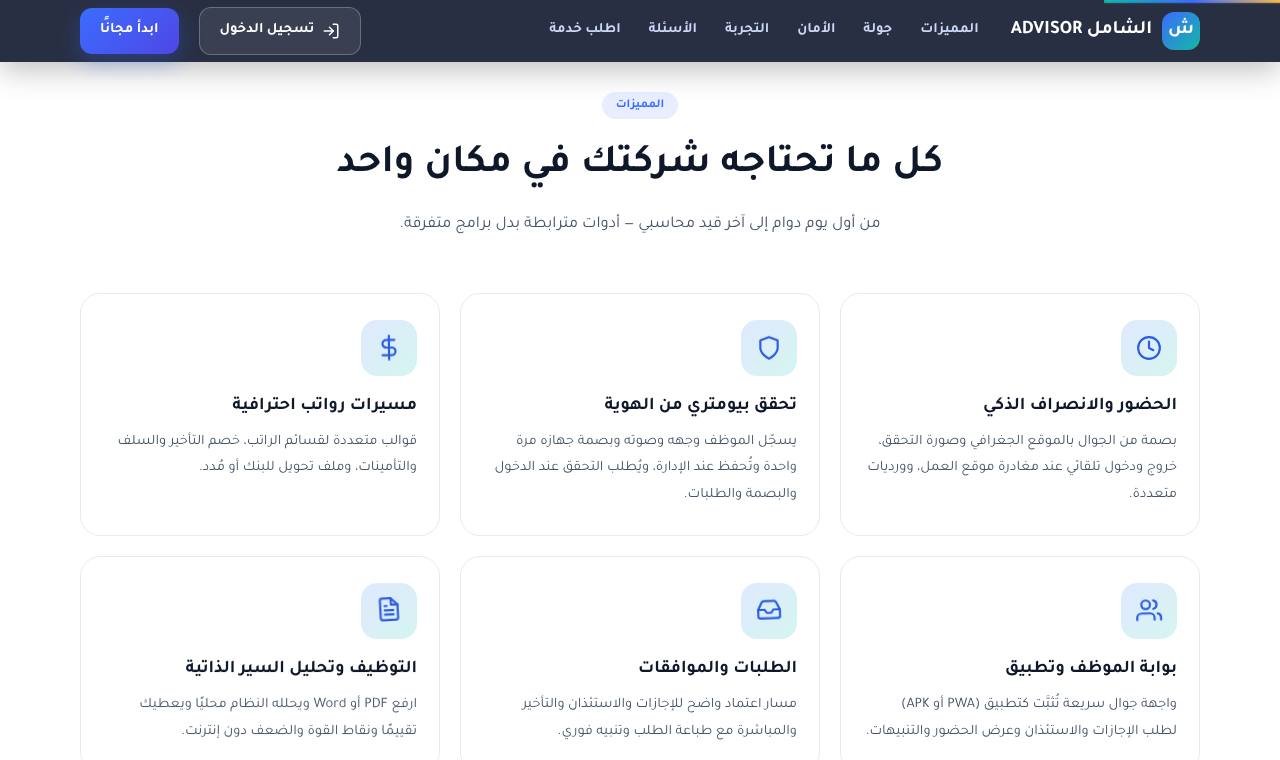
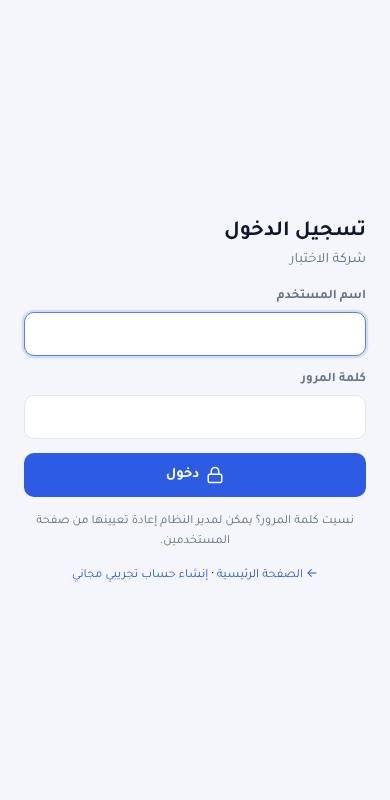
The page a visitor sees before signing in: it introduces the system and offers Sign in, Request a service and Create a free trial account. It also appears after signing out.
What the Page Contains
| Function / button | What it does |
|---|---|
| Sign in | For existing users (asks for the company code when there are several companies). |
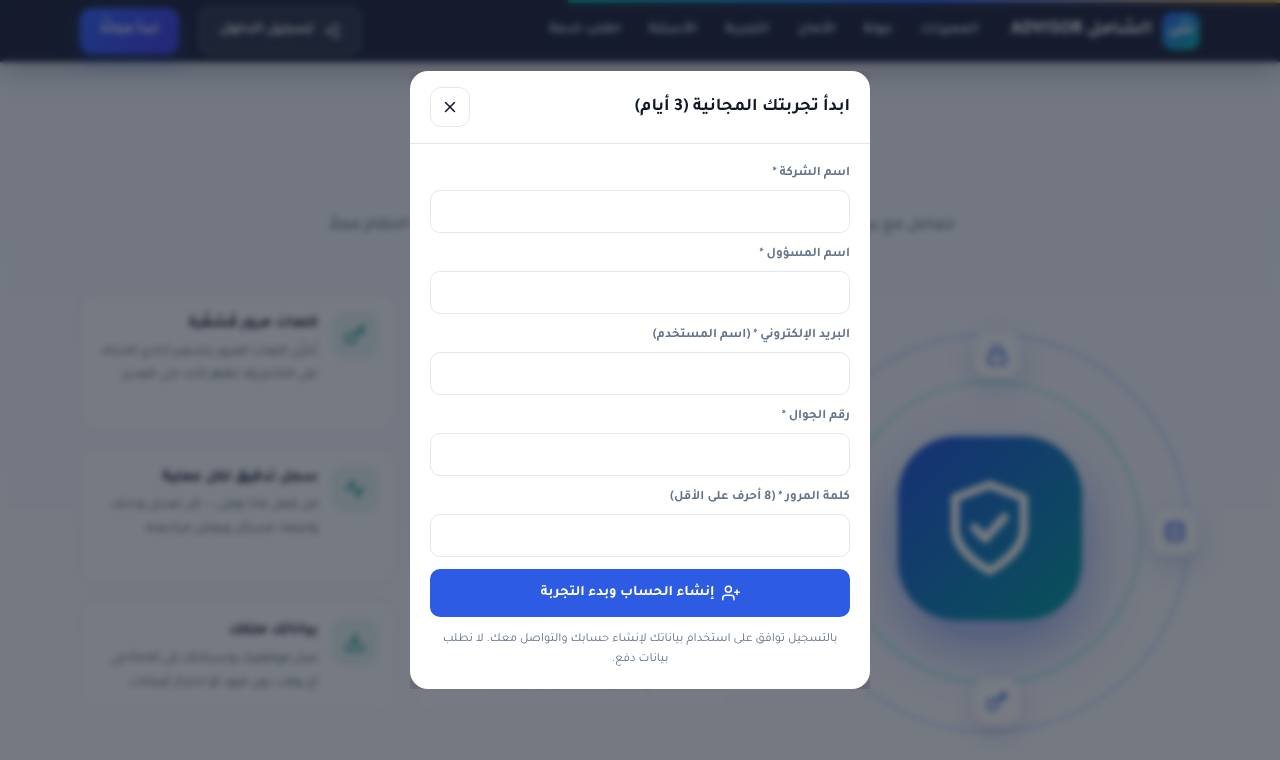
| Start your free trial | Sign-up window: company name, administrator, email, mobile and password; it creates a trial company and signs you in directly. |
| Request a service | A form (service request / demo / quotation / inquiry) that reaches the administrator's dashboard immediately. |
| System tour | Animated scenes that rotate automatically: location-based attendance, payroll, approvals, accounting. |
Trial Sign-up
- The free trial lasts 30 days by default (the System Administrator can change it), with no credit card, after which company access is suspended until it is extended or converted to a license.
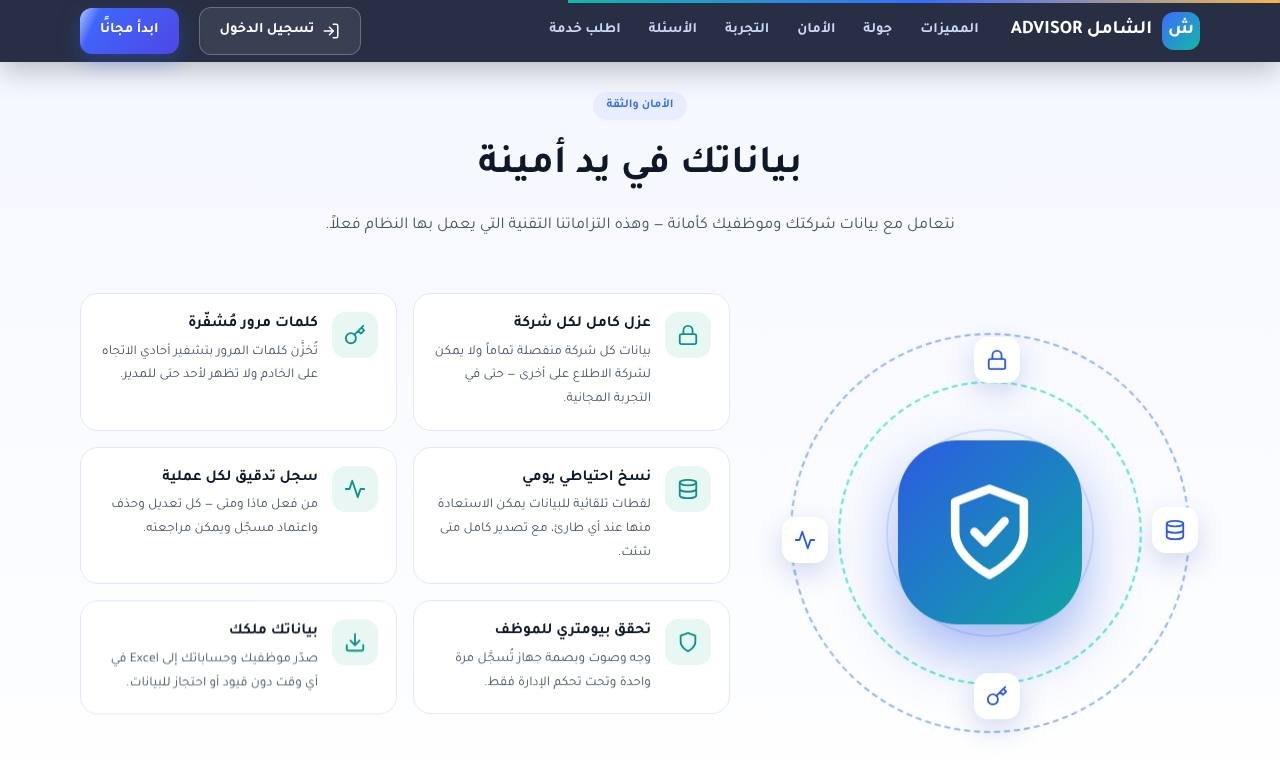
- The trial company's data is completely isolated from all other companies, and its users cannot see any other company.
Trials, Requests and Subscriptions
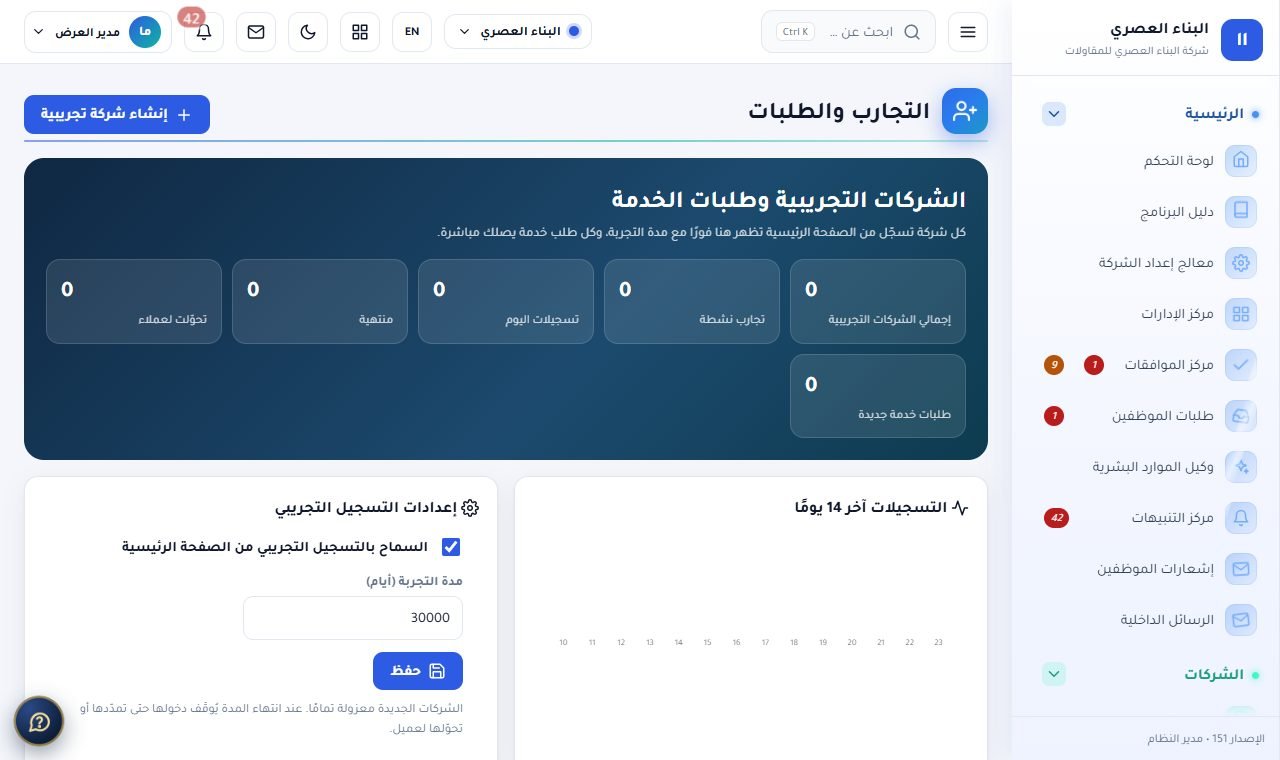
The System → Trials & Requests panel is your full control center for new customers: you see every company that signed up, every service request, and you control the trial.
The Panel
| Function / button | What it does |
|---|---|
| Indicators at the top of the page | Active / expired / converted trials / new requests. |
| Trial sign-up settings | Turn public sign-up on or off and set the number of trial days. |
| + Extend | Adds days to a specific company's trial. |
| Convert to customer | Lifts the trial restrictions when the customer subscribes. |
| Suspend / Activate | Blocks the company's access or restores it. |
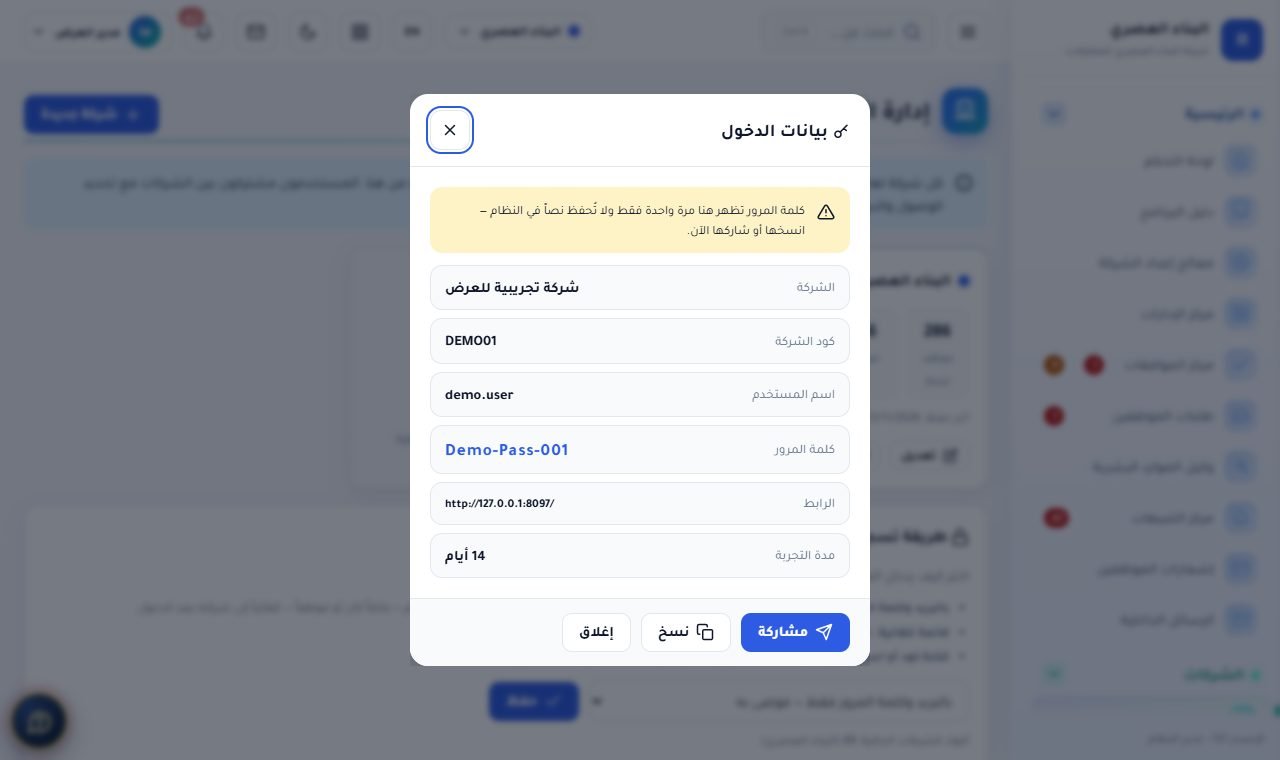
| Login credentials | Issues a new random password for the company administrator and shows it to you once to copy or share. |
| Invoice | Adds the company as a customer in your current company and opens a ready sales invoice (customer and subscription item) for you to set the price. |
| Share | Sends the trial details to its owner via WhatsApp, Telegram or email. |
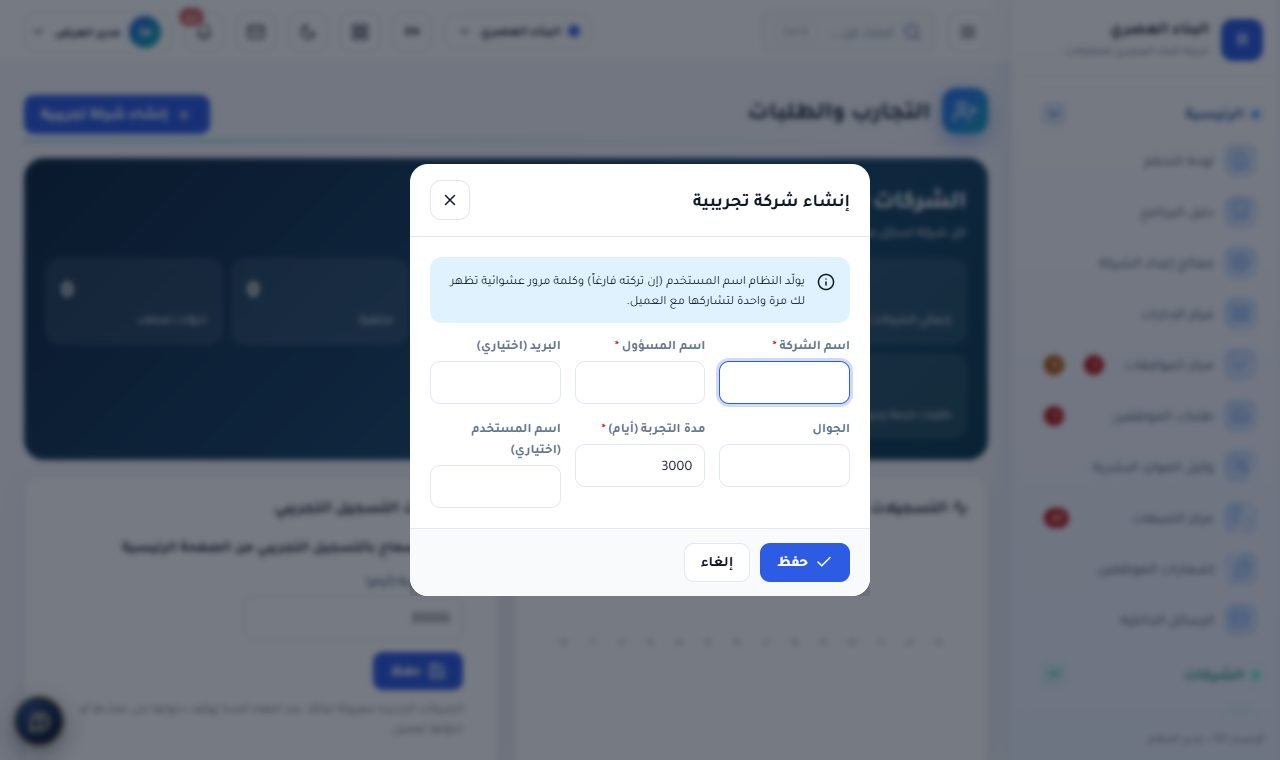
| Create trial company | You create a company for a customer: the system generates the username and password and gives you a ready message to share. |
Issuing Login Credentials
- Click Create trial company (or "Create trial account" next to any incoming request) and fill in the company and administrator names.
- The username, password, company code and link appear. The password is shown once and is not stored as plain text — copy or share it immediately.
Subscription and Licensing
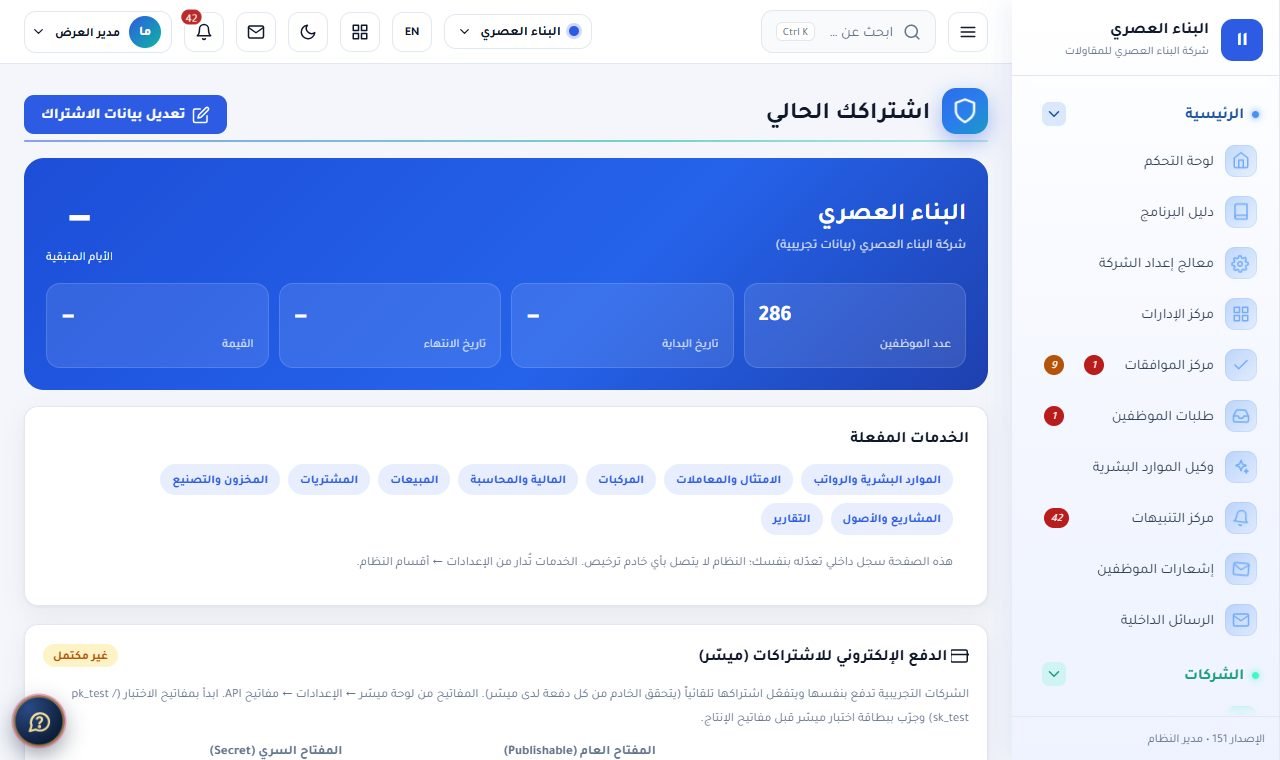
- Shows the subscription status and enabled features, and is where trial companies are upgraded.
Employees and Organizational Structure
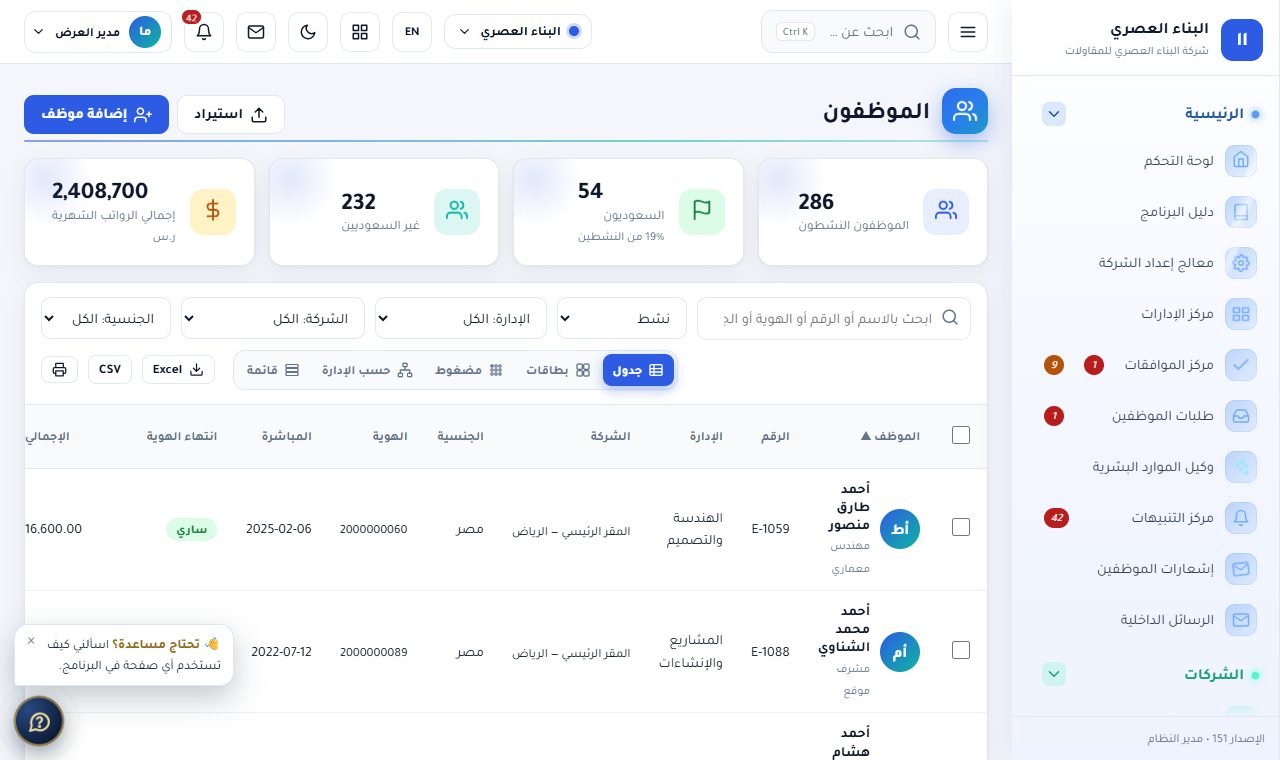
The employee database: personal, job and financial data, attachments and documents.
Employee List
| Function / button | What it does |
|---|---|
| New employee | Employee data form (name, ID, nationality, department, job, salary and allowances, bank account…). |
| Import | Upload employees from Excel/CSV; it also recognizes Odoo and SAP columns. |
| Export | Download the filtered list to Excel. |
| Open file | Employee file: data, attachments, attendance record, leaves, payroll and advances. |
Structure and Departments
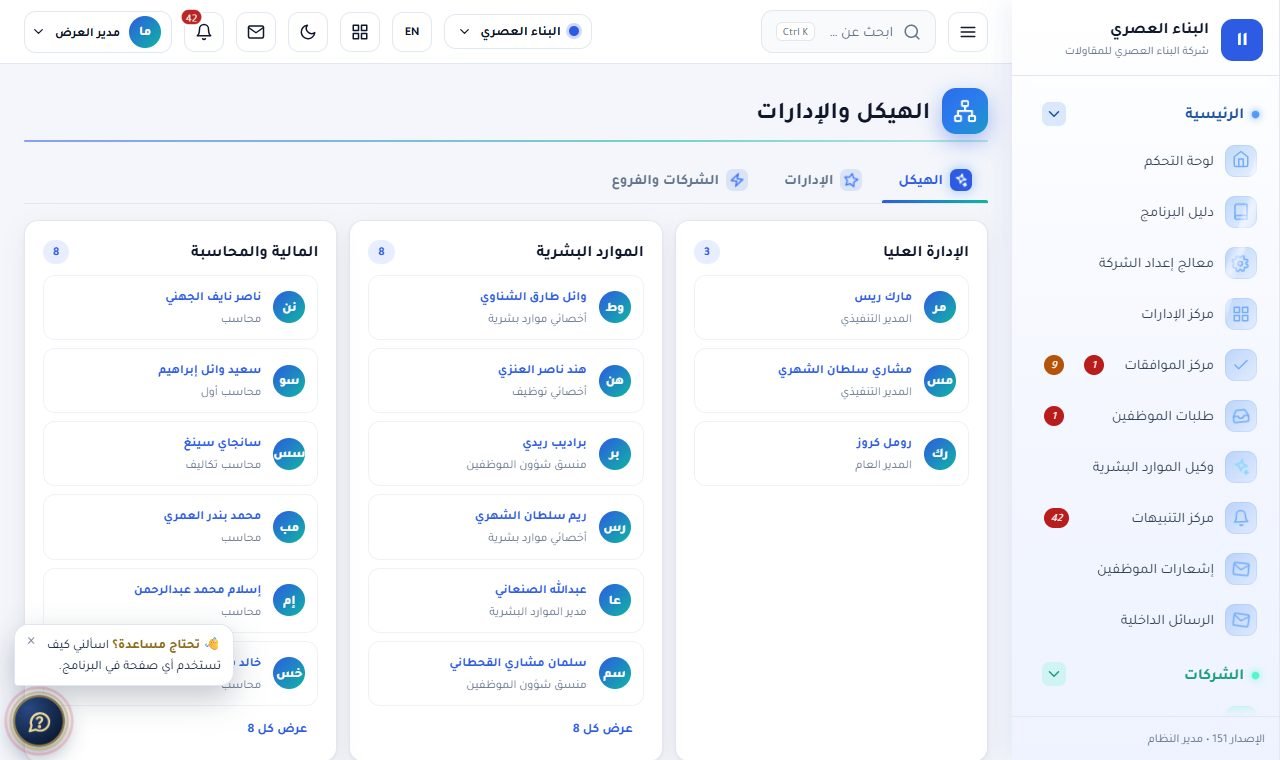
- Shows departments and branches and their hierarchy, and is used in filters, reports and approval permissions.
Letters and Templates
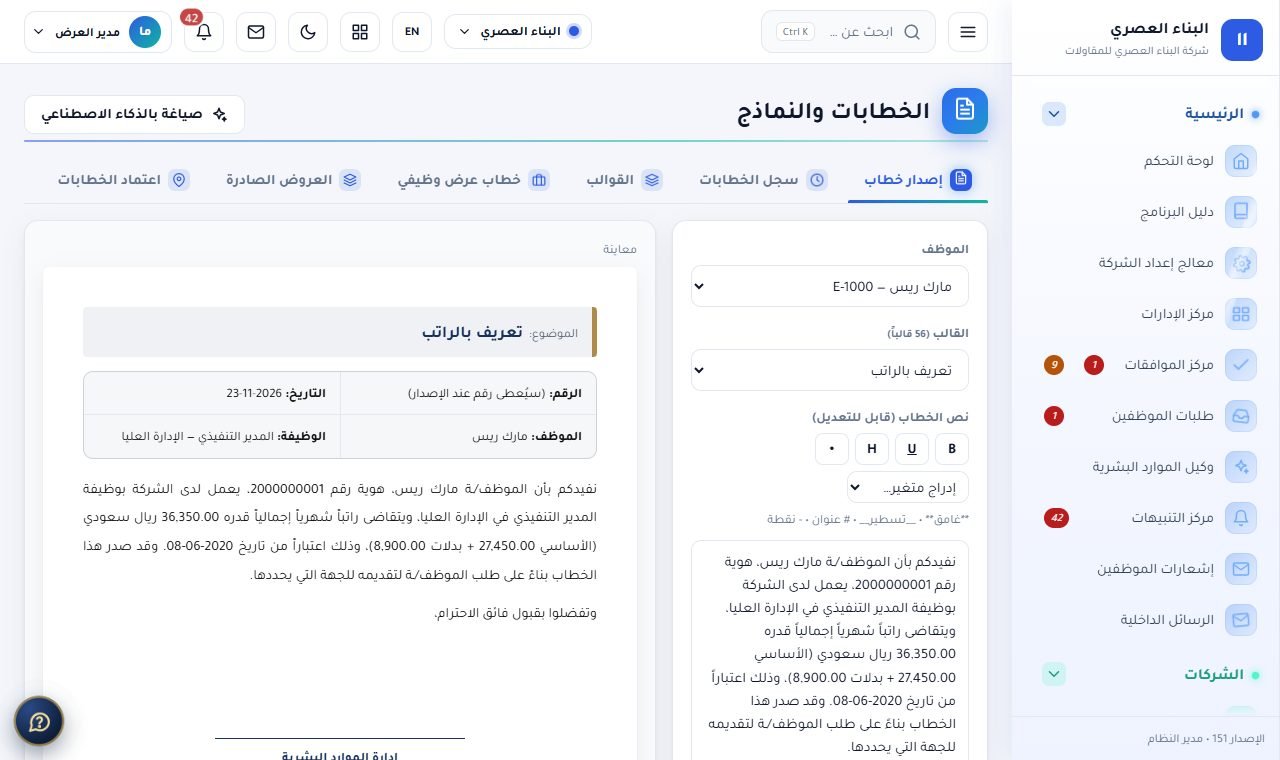
- Issue ready-made letters (salary certificate, clearance…) with your company letterhead and stamp, with printing, PDF saving and sharing.
Attendance
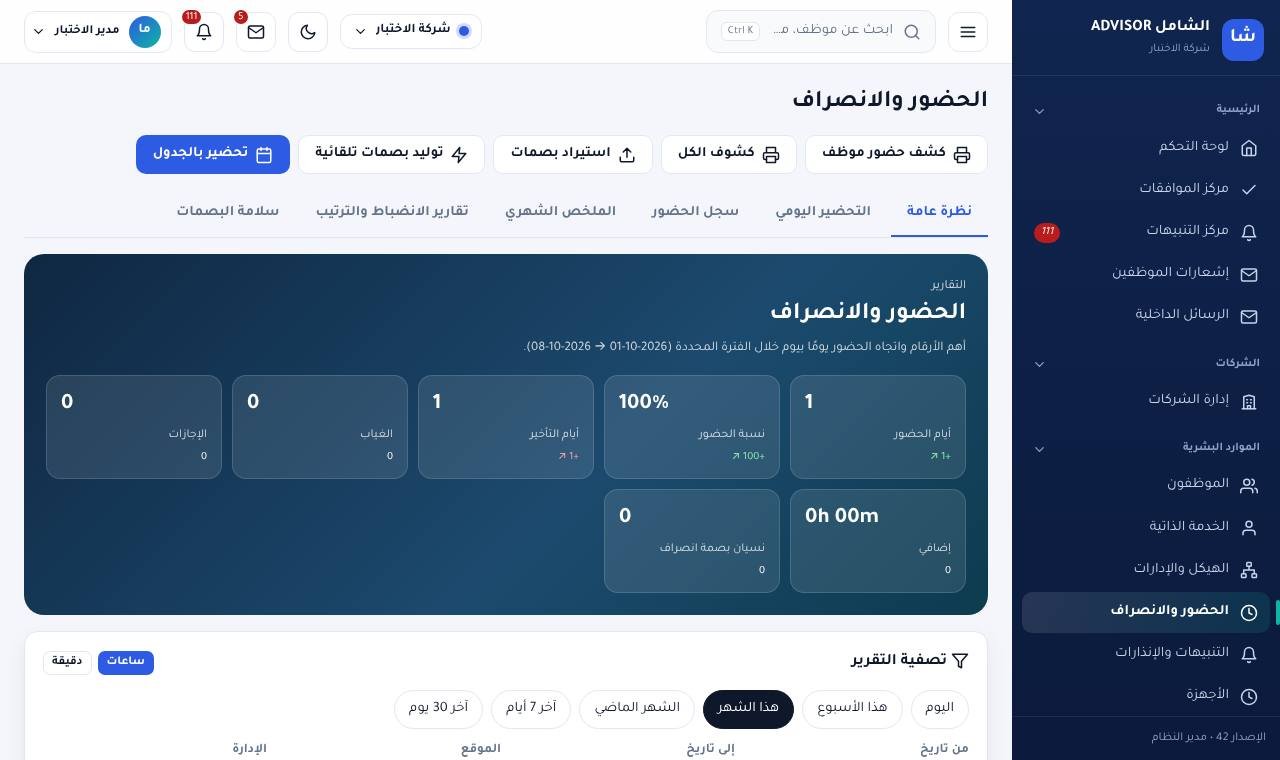
Track daily attendance from mobile and devices, lateness rules, an analytics dashboard, and a "Data Integrity" tab to detect anomalies.
Attendance Dashboard
| Function / button | What it does |
|---|---|
| Dashboard | Today's and the month's indicators, a chart, and filters by department and branch. |
| Daily attendance | Edit or add manual attendance when needed, with the verification photo and the registered face photo for comparison. |
| Data integrity | Detects duplicate attendance, missing check-outs, or punches from outside the location. |
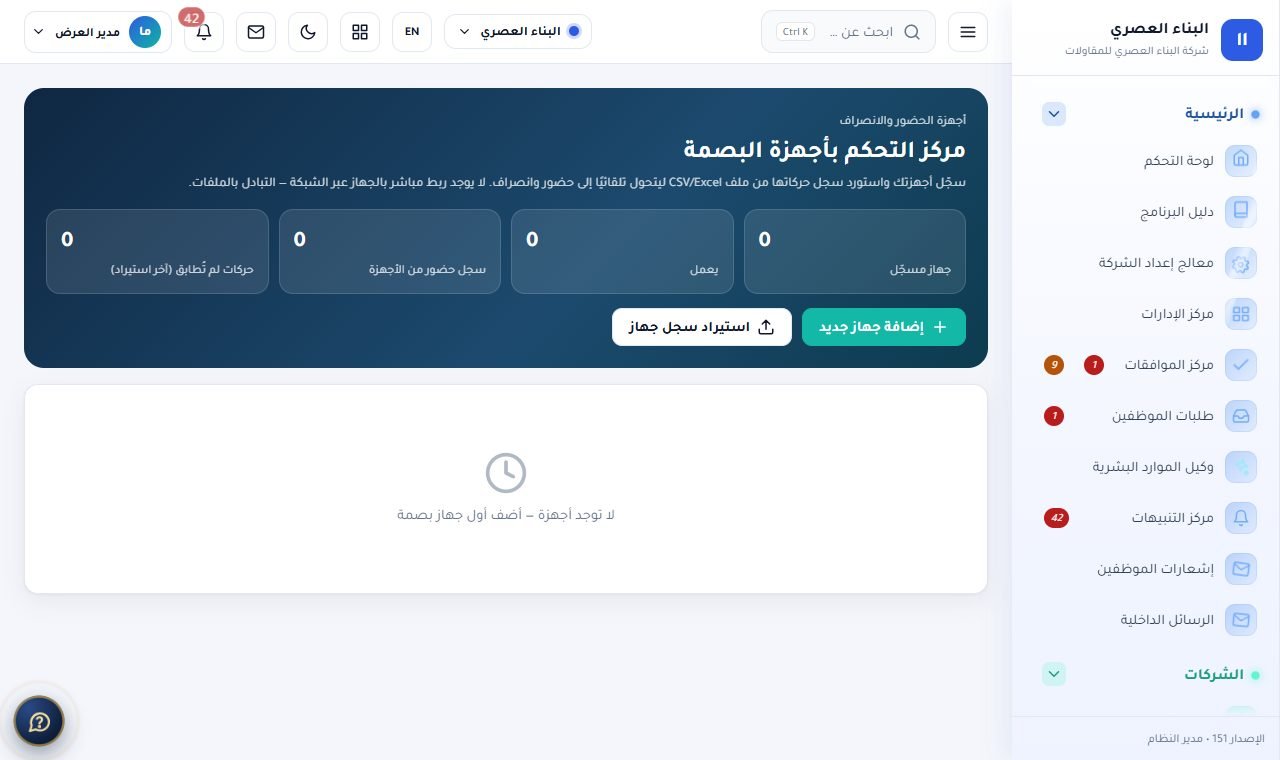
| Devices | Import fingerprint device files (CSV/Excel) and link them to employees. |
Devices
- Register your devices and import their transactions; the columns "No", "Number" and "Code" are recognized automatically.
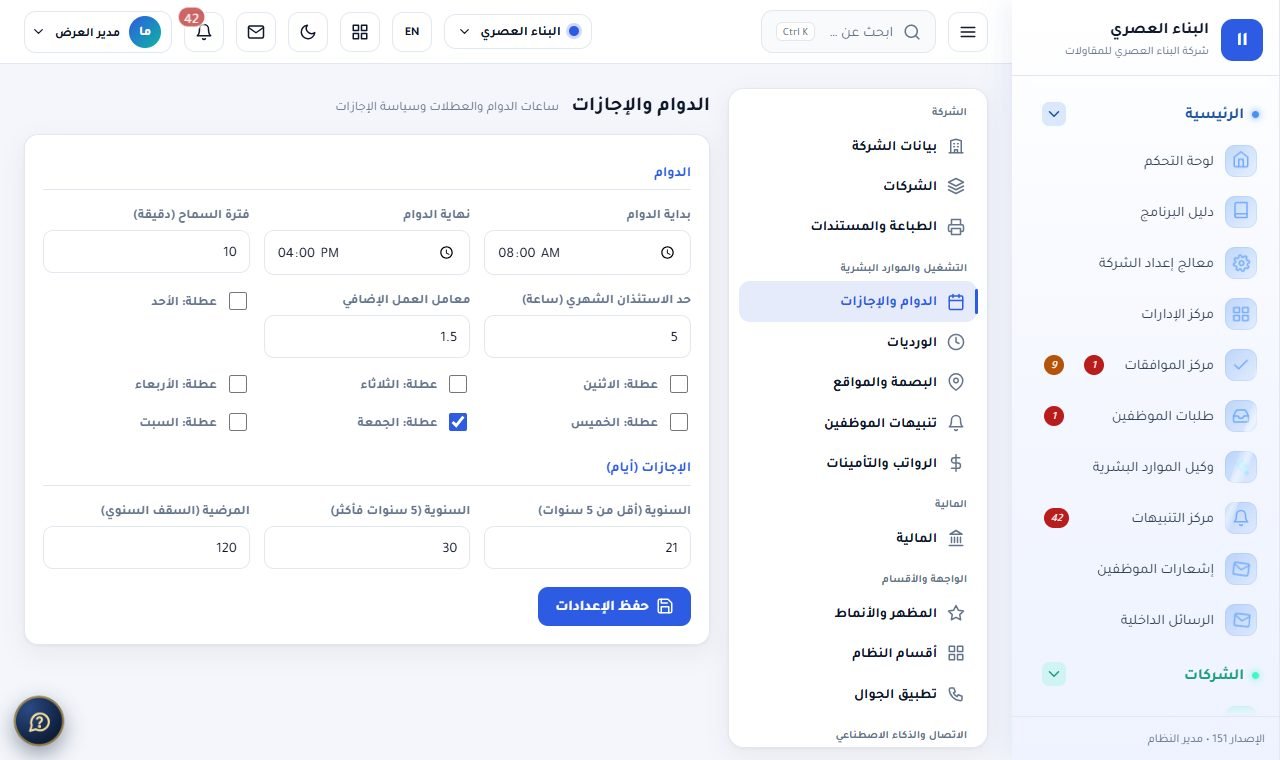
Work Hours and Location Settings
- Settings → Work Hours & Leaves: working hours, days off, grace period, leave balances.
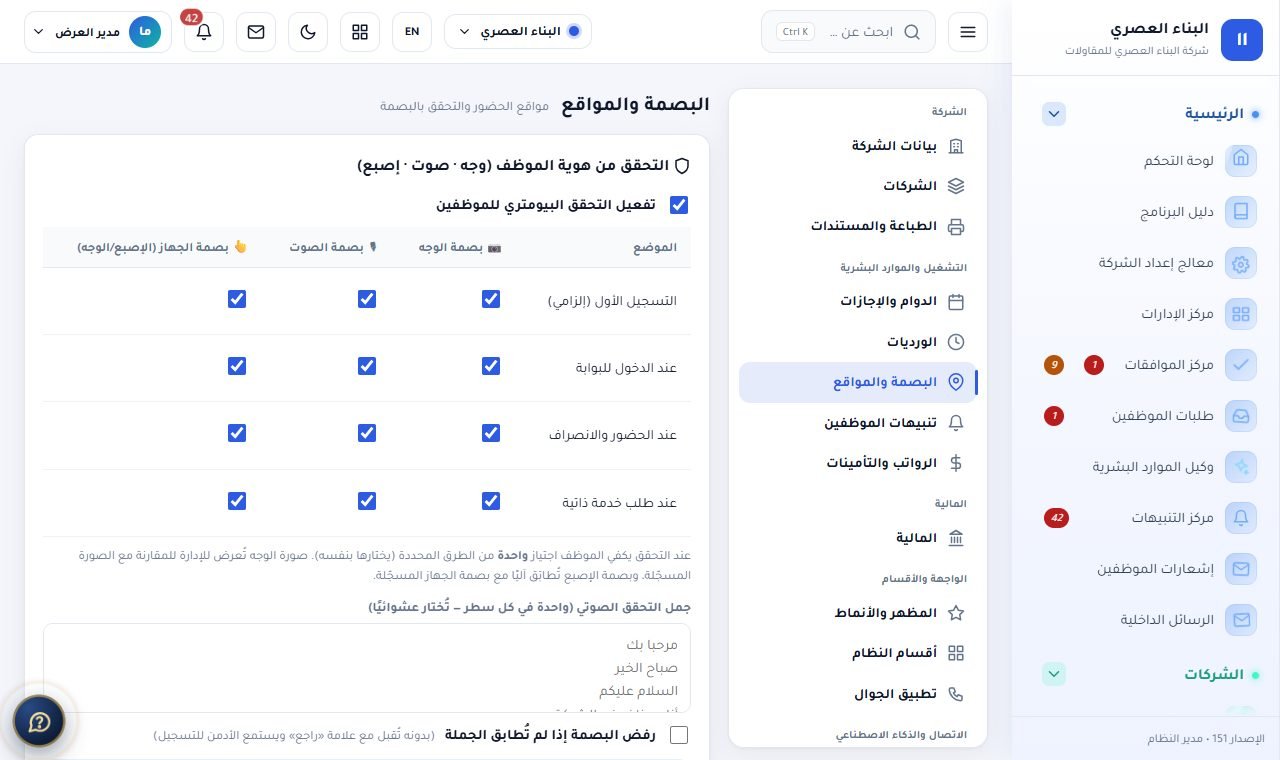
- Settings → Punch & Locations: define work locations and their range in meters to restrict punching by location, and enable automatic check-in/check-out when entering/leaving the range, with an alert to the employee and manager.
Leaves, Permissions and Approvals
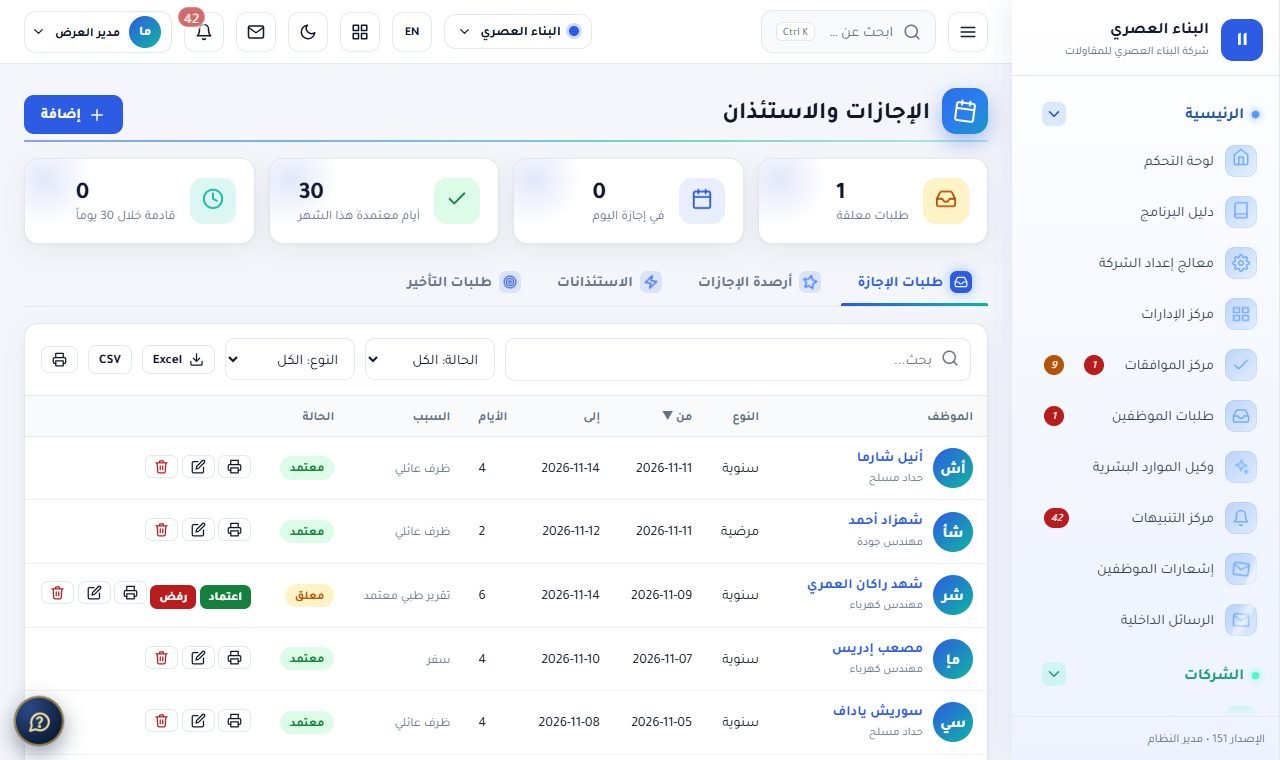
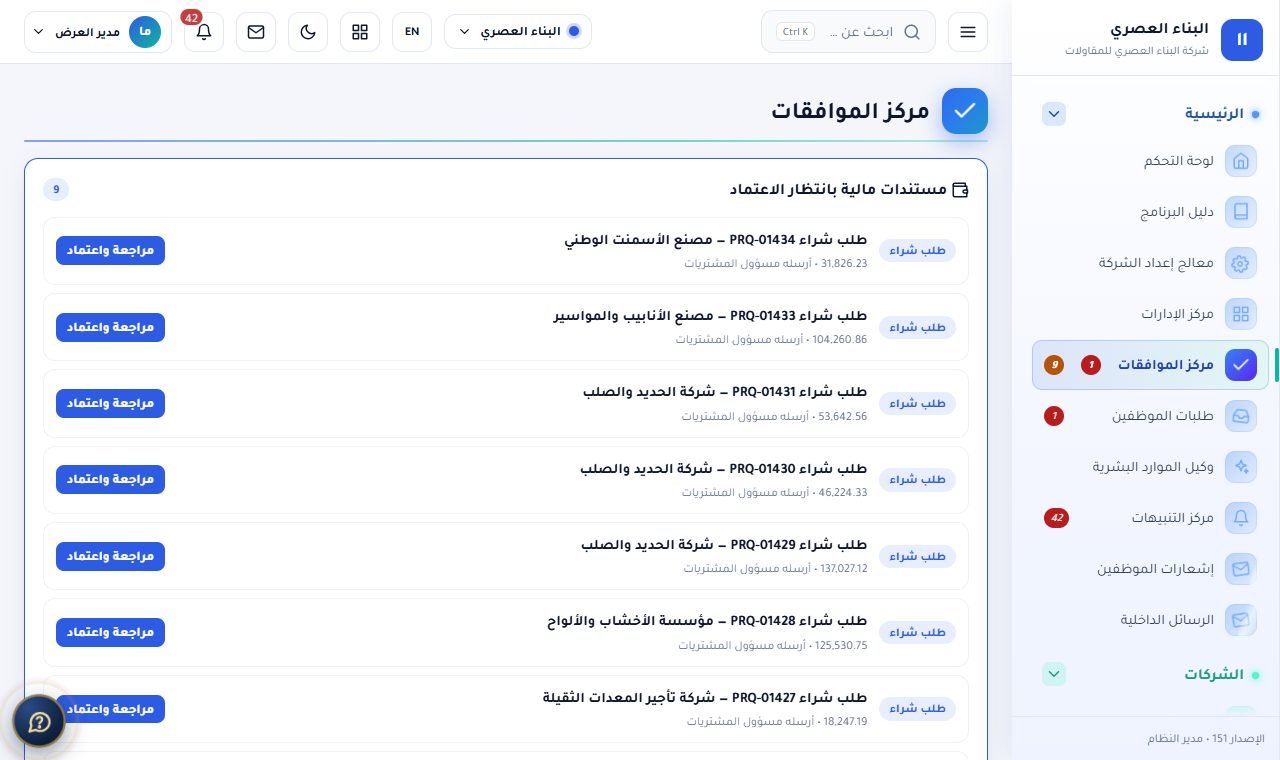
All employee requests arrive in one place for review and approval, and the employee is notified of the result.
Pages
| Function / button | What it does |
|---|---|
| Leaves & Permissions | Leave requests of all types, permissions and lateness; the remaining balance is shown. |
| Approval Center | Everything awaiting your approval (leaves, advances, claims…) with one-click approve/reject. |
| Advances & Loans | Record an advance, schedule its installments and deduct them automatically from salary. |
| Claims & Assignments | Employee expenses and external work assignments. |
Employee Portal
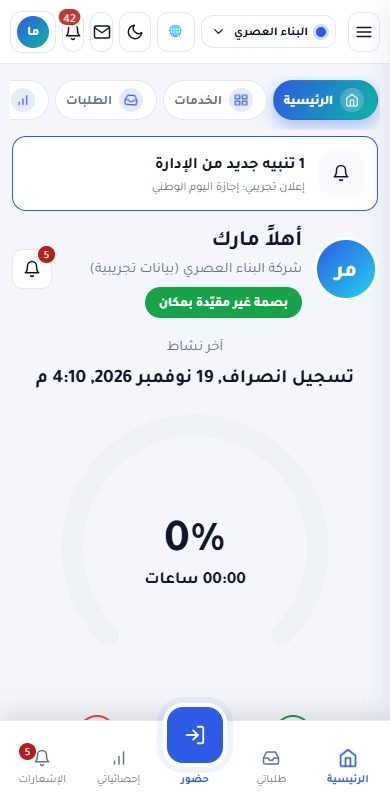
A web app that works on mobile (and can be installed as an app): the employee records attendance, requests services and views their account without access to anyone else's data.
Pages
| Function / button | What it does |
|---|---|
| Home | Today's status, working hours, and the "Within work range" indicator. |
| Attendance button | Switches automatically to "Check out" after check-in and vice versa, and verifies location and identity. |
| Self-Service | Request a leave, permission, work resumption or advance, with attachments. |
| Calendar & My Account | Attendance record, leaves, and notifications and alerts directed to them. |
Self-Service
- Requests are sent to the manager as soon as they are submitted, and their status (pending / approved / rejected) is shown to the employee.


Employee App Management and Announcements
Control what the employee sees in the app: announcements, pop-ups, welcome messages and instant notifications.
Contents
| Function / button | What it does |
|---|---|
| Announcements & Pop-ups | An announcement or pop-up with an image and display period, delivered as a phone notification. |
| Welcome & Maintenance Message | Welcome text, maintenance mode, and forced app update. |
| App Languages | Arabic, English, Urdu, Hindi, Bengali and Filipino — the employee chooses their language. |
Employee Biometrics and Identity Verification
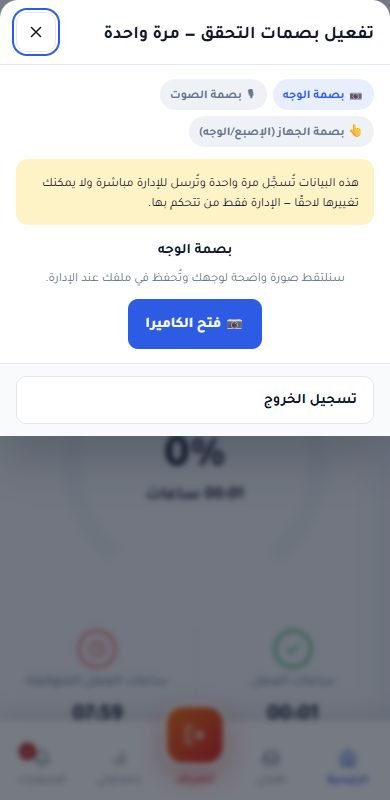
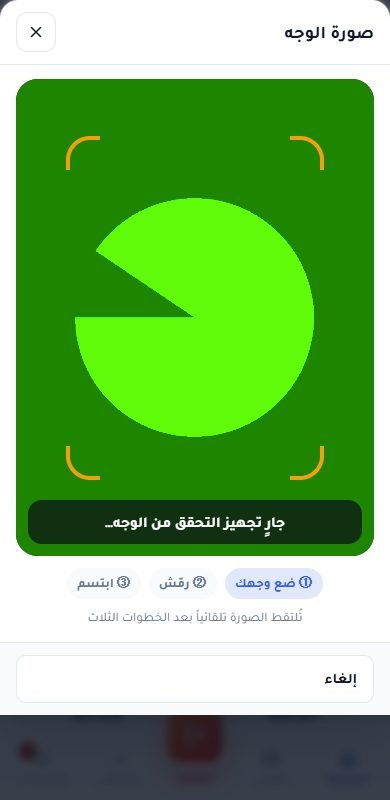
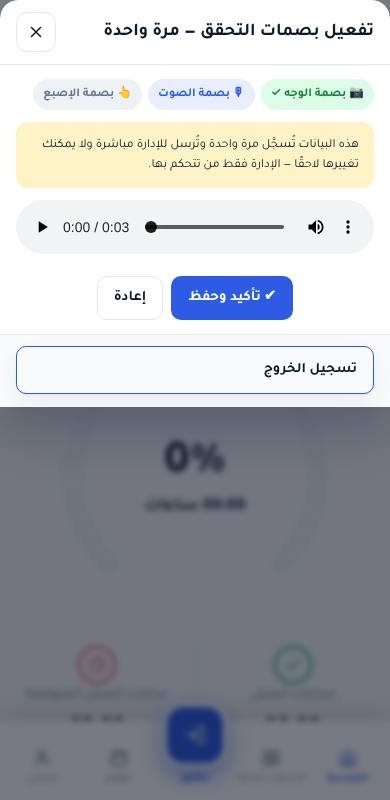
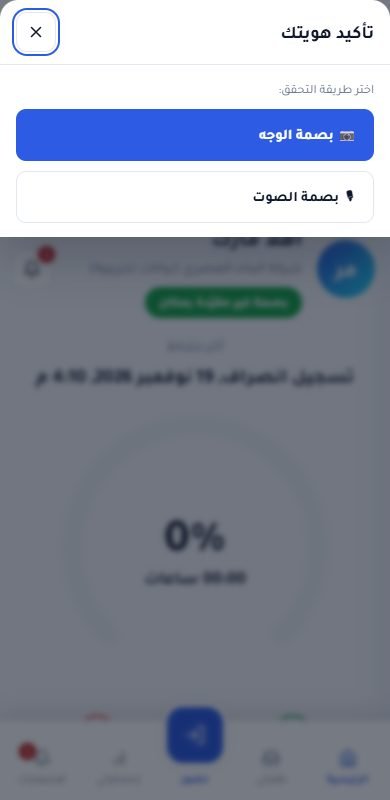
To make sure the person using the app is the employee themselves: they record their face photo, voice sample and device fingerprint once on first sign-in; these are stored with the manager and the employee cannot change them.
Employee Side
- On first sign-in a window appears that cannot be closed until all three steps are complete: face, then voice (by reading a sentence), then device fingerprint.
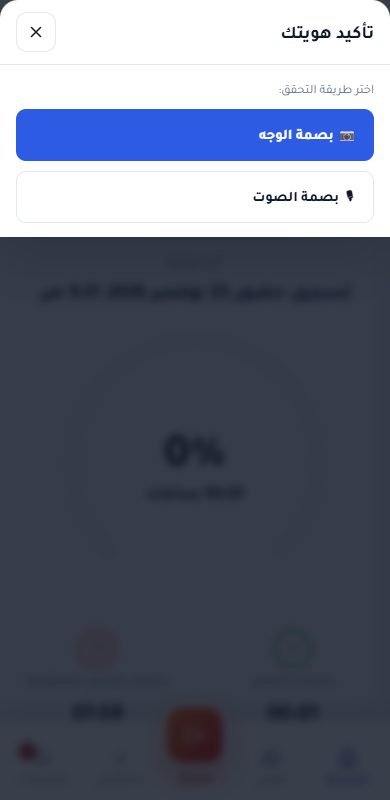
- After that, verification is requested at sign-in, when checking in/out, and when requesting a self-service; any one of the registered methods is enough.
Verification During Work
- Every attendance transaction records the verification method and its result, and the verification photo is shown to the manager for comparison with the original enrollment photo.
Manager Side
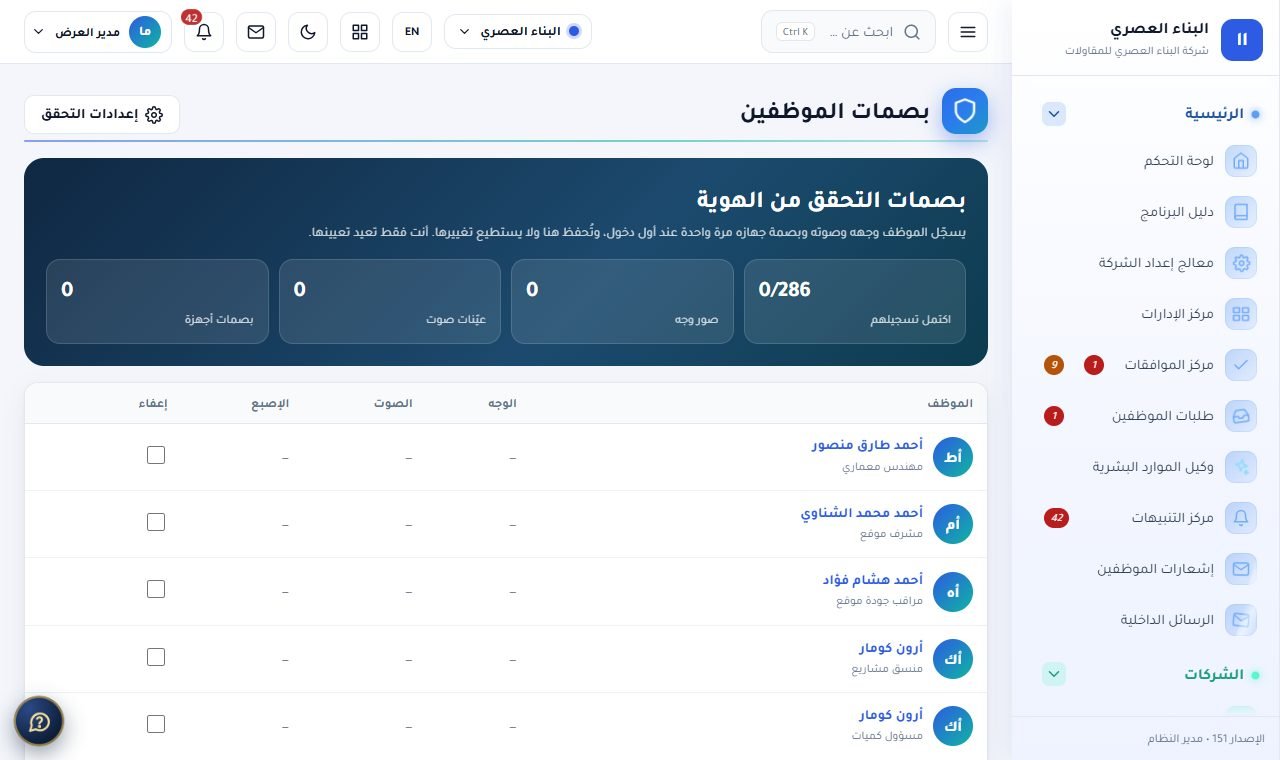
- Important notice: the face photo is shown to you for visual comparison (no automatic matching), the voice verifies the spoken sentence (no speaker identification), and the fingerprint relies on the device's biometrics and requires an https connection and a domain name.
| Function / button | What it does |
|---|---|
| Employee Biometrics | Who has enrolled and who has not, with photos and voice playback. |
| Exempt | Excludes an employee from verification (for example, their device does not support the camera). |
| Reset | Deletes an employee's biometrics so they re-enroll at their next sign-in. |
| Matrix | Defines which method is required for: first enrollment, sign-in, attendance, self-services. |
Payroll and GOSI
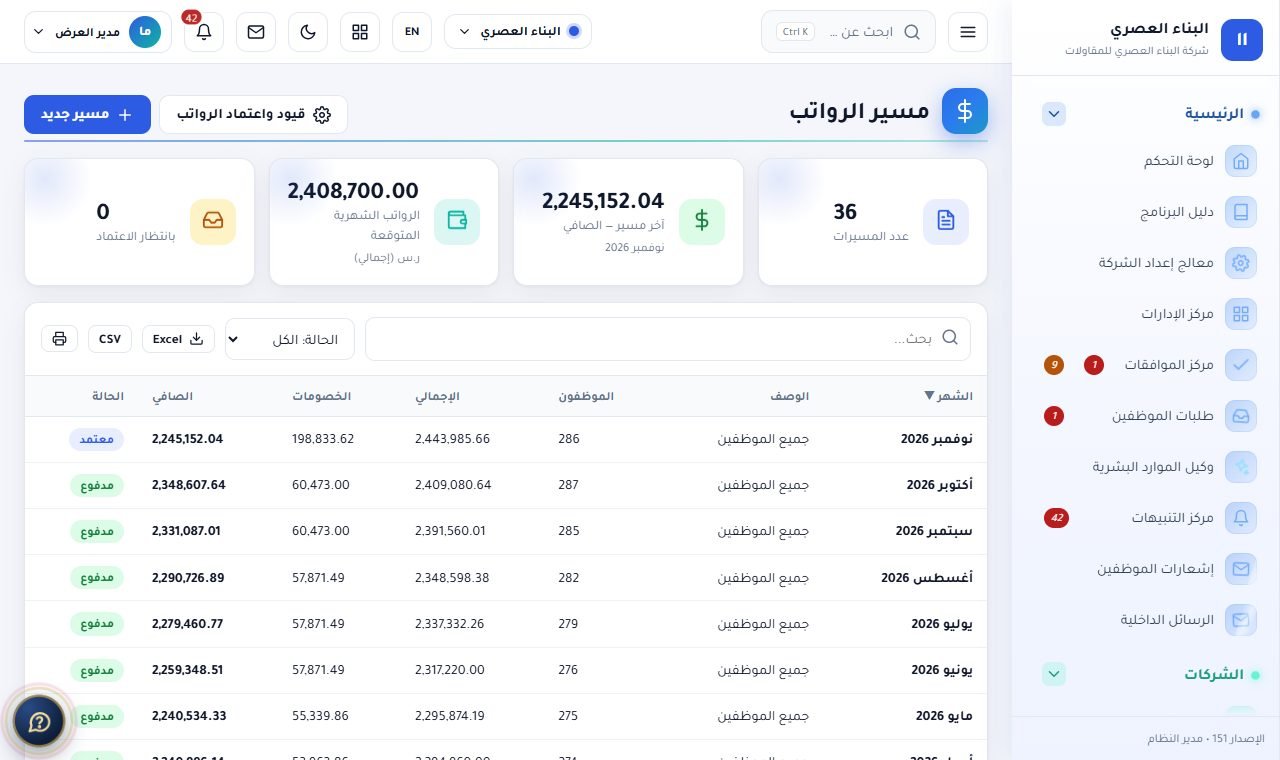
The monthly payroll run is calculated directly from attendance (lateness, absence, overtime, advances, GOSI, penalties), goes through an approval chain, and automatically generates its journal entries for each employee on their own account.
Payroll Run
| Function / button | What it does |
|---|---|
| Create run | Choose the month and company/department (or specific employees) and the system calculates entitlements and deductions. |
| Payslip | Multiple templates for printing or sharing. |
| Payroll journal entry / Transfer file | A ready accounting entry and a bank transfer file (WPS/Mudad). |
| GOSI & Violations | Calculation of social insurance (GOSI) and recording of employee violations. |
| End of service | Calculation of end-of-service entitlements. |
Payroll Cycle and Journal Entries
- Create a run: choose the month (and company/department if you wish) and entitlements and deductions are calculated from attendance, leaves and advances.
- Submit for review then Approve: if the approval chain is enabled, the run goes through its stages (HR → Finance Manager → Approved by), and any stage with no one in the company holding its role is skipped automatically.
- On final approval the accrual entry is recorded: debit expenses by item and cost center — credit "Accrued Salaries 2110" for each employee on their own account, "Employee Advances 1150" for each employee, and "Accrued GOSI 2120".
- Confirm payment: choose the bank or cash box and the payment entry is recorded (debit 2110 for each employee). All of this appears in the employee's statement in "Party Balances".
- The Wage Protection System (WPS) file and the bank file are exported with IBAN and ID/Iqama number checks, and payslips reach the employee's app with receipt confirmation.
- Reopening the run cancels its entries and recorded advance installments so it can be recalculated.
Employees: Statuses, Search, Provisions & GOSI
An employee's status controls payroll, requests and app access, together with full employee search, the leave provision, the GOSI link and letter editing.
Employee statuses
| Function / button | What it does |
|---|---|
| Active (on duty) | Included in payroll and attendance, can submit requests and use the employee app. |
| Under procedure | Temporary suspension or ongoing termination: removed from payroll, no new transactions, and blocked from the app and portal. |
| Service ended | Removed from payroll, requests and attendance and blocked from signing in; data and statements stay with HR. Set automatically when end-of-service is approved. |
Employee search and extra fields
- The Employees page has search options for every field: branch, employee no./name, job type, position, status, nationality, department, ID, passport, border no., site/project, sponsor, establishment, level, grade, contract type, wage protection, general no.
- The extra fields (passport, border no., sponsor, establishment, level, wage protection, general no., site, job type) are in the employee card.
Leave provision and leave calculator
- HR → Leave Provision: for each employee, entitlement, days taken, balance, daily wage and balance value up to the date you choose.
- Choose the wage basis (basic, basic + housing, gross) and the days divisor (30/26/22).
- Post adjustment entry compares the required amount with the booked one and posts the difference: debit 6026 leave provision expense / credit 2136 accrued leave provision.
- Leave calculator: employee + date → balance days and value.
GOSI link (API)
- In the GOSI Business portal: Establishment services → API access → Create access, then copy the Client ID, Client Secret and DPoP key, plus the x-apikey from the "How it works" document.
- In ADVISOR: Settings → API Integration → GOSI → Configure: environment, establishment registration no. and the values above, then "Test connection". They are stored encrypted and never returned to the browser.
- For several establishments: "Add establishment" with its registration no.; each employee is linked to their establishment automatically on the first fetch.
- GOSI Matching page: fetches each employee's GOSI products and deduction rates, compares them with their settings and suggests corrections.
- Production access is activated by GOSI; if you see "Unauthorized access", contact their technical support.
Letters
- The Edit button in the letters log, issued offers, approvals and the print window edits the text, the job-offer design or the administrative form fields, and keeps the letter number.
- An approved letter can be edited only by a user with approval permission, and it returns to the start of the approval path after saving.
Finance and Accounting
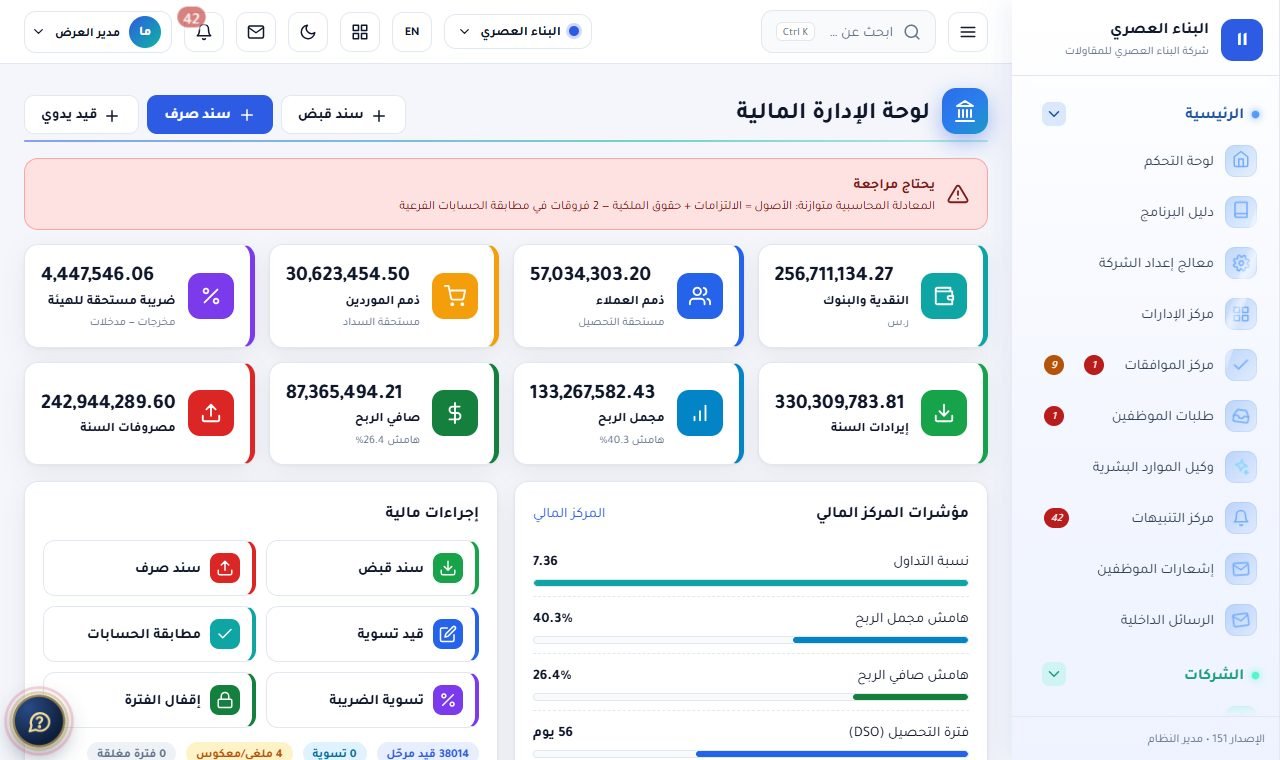
A hierarchical chart of accounts, daily journal entries, vouchers, account statements, and financial reports.
Chart of Accounts (Main and Sub)
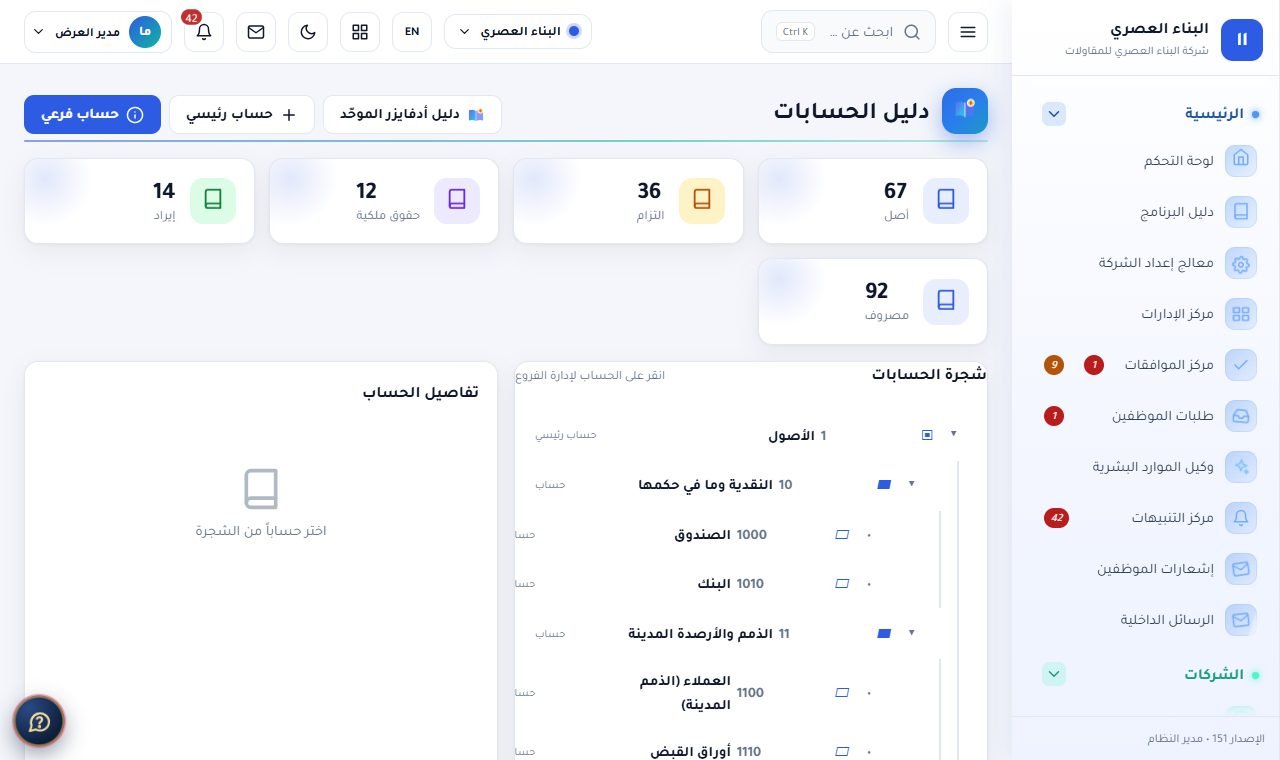
- The tree starts with five main groups (assets, liabilities, equity, revenue, expenses). Click the arrow to expand branches.
- Main account: adds an account under a group. Sub-account (or "Add sub-account" from account details): adds an account under a parent account.
- Click any account to see its type, nature, balance and child accounts; an account is either "posting" (entries are recorded on it) or "summary" (it totals its branches).
Entries and Reports
| Function / button | What it does |
|---|---|
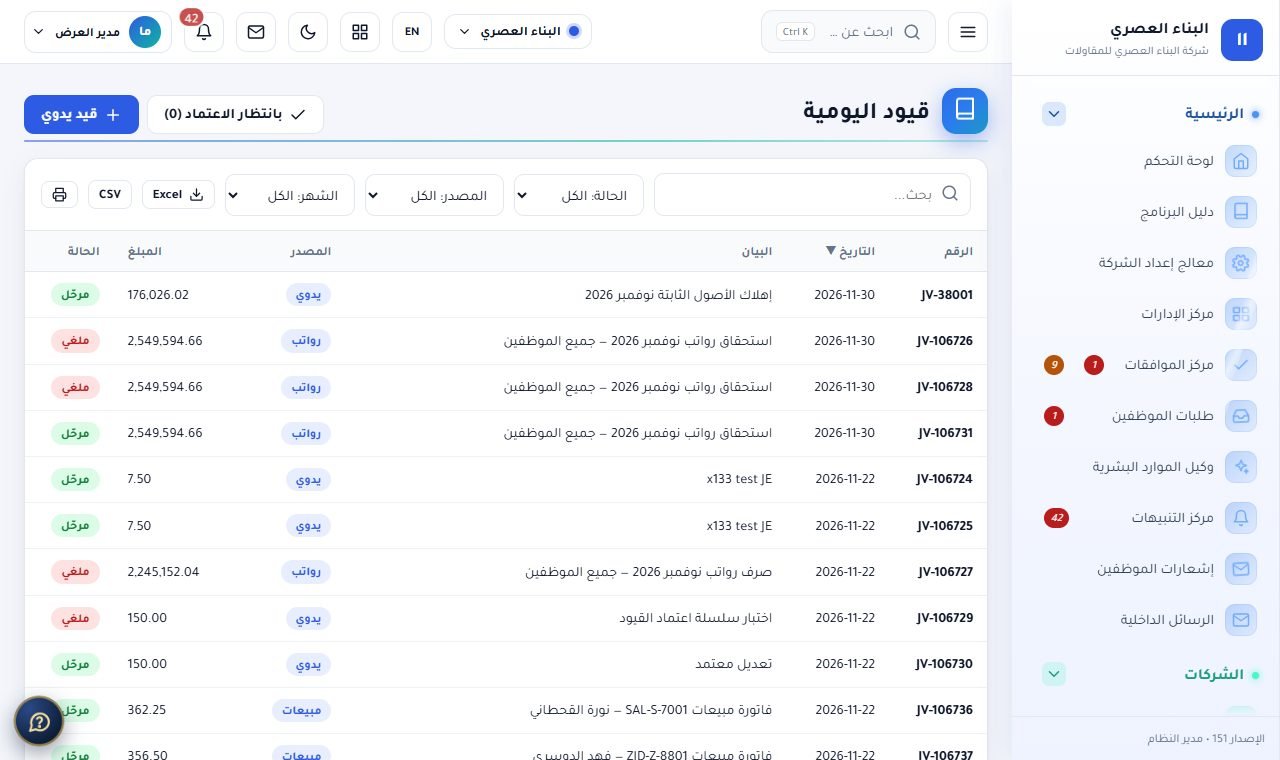
| Journal Entries | Record, post and reverse double-entry journal entries. |
| Receipt & Payment Vouchers | Cash and bank movement. |
| Account Statement (Ledger) | Transactions and balances of any account. |
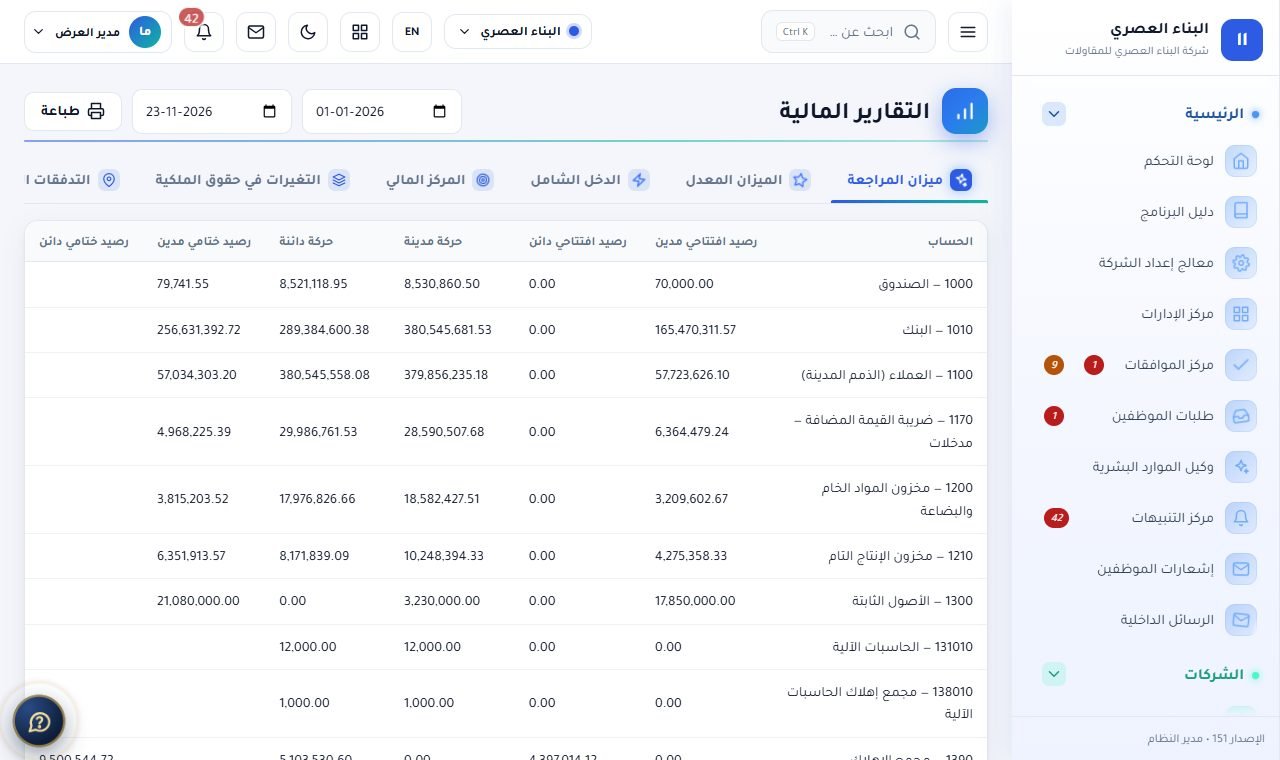
| Financial Reports | Trial balance, income statement and balance sheet. |
| Accounting Cycle | Monthly and annual closing steps. |
| Financial Statements (by Mapping) | Balance sheet, income, cash flows and equity, built on mapping each account to its line item — see the "Financial Statements" chapter. |
| Financial Approval Requests | Manual entries awaiting approval when the journal entries chain is enabled. |
Financial Settings, Banks and Years
A single center for setting up Finance: banks and cash boxes, years and periods, tax types, cost centers, and posting policies — with a readiness indicator.
Contents
| Function / button | What it does |
|---|---|
| Bank Accounts & Cash Boxes | Adding a bank or cash box automatically creates its ledger account and it appears in vouchers and payroll payment. |
| Fiscal Years & Periods | A fiscal year with monthly periods, and closing any period to prevent edits to it. |
| VAT Types | Tax rates and their accounts; invoices distribute the tax according to each line's type. |
| Cost Centers | Hierarchical (project → site…) for analyzing expenses and revenue. |
| Posting Policies | Limits for manual entries, minimum description length, and back-dated posting days. |
| Account Mapping | The accounts used by automatic operations (sales, inventory, payroll…). |
Advanced Finance: Currencies, Budgets, Recurring Entries & Assets
Accounting tools already in the system that complete entries, vouchers and statements.
Tools
| Function / button | What it does |
|---|---|
| Currencies & exchange rates | Define currencies and rates, and issue invoices in a foreign currency: the foreign prices and the rate are kept and the local-currency equivalent is posted. |
| Opening balances | One screen for the balances of all accounts and of customers and suppliers, posted as a single balanced opening entry. |
| Recurring entries & invoices | An entry or invoice repeats automatically weekly, monthly, quarterly or yearly (rent, depreciation, accruals). |
| Budgets | A budget per year and cost center, with a budget-vs-actual report and execution rate. |
| Aging | Receivables and payables aging by period in the financial reports, plus collection reminders for overdue items. |
| Fixed assets | Asset register by category, straight-line or declining-balance depreciation with automatic entries, a depreciation schedule, and sale/disposal with the gain/loss entry. |
| Cheques & banks | The Cheques page (under collection and issued), and bank reconciliation in "Cash & Banks" up to the statement date. |
| Taxes | VAT types at line level, withholding tax on supplier payments, and the VAT return. |
| Period comparison | The mapped financial statements compare with the previous period or the same period last year. |
| Scheduled reports | Reports sent periodically by email, plus SMS and WhatsApp notifications. |
ADVISOR Unified Chart of Accounts
A ready, interlinked chart of accounts (over 200 accounts) built on best practices, linked to the financial statements and cash flows.
Applying It
- Open Finance → ADVISOR Unified Chart of Accounts and review the preview: the accounts to be added, those to be moved under their groups, and any conflicts.
- Click Apply: no account is deleted, no used account number changes, and no entry is touched. You can undo using a saved backup.
- Fixed assets have categories (buildings, vehicles, equipment…) with cost, accumulated depreciation and depreciation expense accounts specific to each category.
- You can export the chart to Excel, and add an English name to any account from the account edit screen.
Financial Statements, Mapping and Validation
Accurate financial statements built on mapping each account to its statement line item, with an integrity check before handing over to the auditor.
Pages
| Function / button | What it does |
|---|---|
| Map Accounts to Statements | For each account: the statement line (current assets, cost of revenue…) and cash flow classification (operating/investing/financing). Accept the suggestion or edit it. |
| Validate Financial Statements | 12 checks: trial balance and entries balance, balance sheet equation, unmapped accounts, abnormal balances, ledger and party differences… |
| Financial Statements (by Mapping) | Balance sheet, income, cash flows (indirect), changes in equity — with comparison to the previous period and clicking any figure to see its entries. |
Tips
- Start with validation: any account with a balance that is not mapped appears as an error that must be fixed.
- Cash flows show any unexplained difference explicitly and do not hide it.
- Print with the "Prepared by / Finance Manager / Approved by" boxes or export to Excel.
Financial Approval Chains & Signatures
Who approves the payroll run and journal entries, in what order, and how names and signatures appear on documents.
Setup
- Open Financial Approval Chains & Signatures (from Financial Settings or the payroll page).
- Payroll run chain and manual journal entries chain: enable them and define the stages; each stage is for a specific role or users. Default: HR → Finance Manager → Approved by.
- For entries: set a minimum amount if you want only large entries to be subject to approval. A pending entry does not appear in any report until it is approved.
- Segregation of duties: the preparer does not approve, and no person approves two stages — this can be allowed for single-user businesses.
- Signature boxes at the bottom of every report: "Prepared by — Accountant" (the user who prints), "Finance Manager" and "HR" (the names of the role holders in the company, automatically), "Approved by".
Follow-up
| Function / button | What it does |
|---|---|
| Financial Approval Requests | Entries and payroll runs awaiting approval, who can approve them, and those approved and rejected. |
| Electronic Signature | Each user draws their signature from their "My Electronic Signature" menu and it is printed next to their name on what they approved. |
| Rejection | Returns the payroll run to draft or keeps the entry unposted, stating the reason. |
Balances of Customers, Suppliers, Employees and Cheques
Every customer, supplier and employee has a statement that gathers their invoices, vouchers and entries.
Pages
| Function / button | What it does |
|---|---|
| Party Balances | Each party's balance and transactions; for employees: accrued salaries, advances and claims. |
| Account Statement (Ledger) | Filter by party, branch or cost center. |
| Cheques | Incoming and outgoing cheques with due dates; changing the status (collected/rejected) records the entry. |
| Collection Reminders | Overdue customer invoices and their aging, with reminder sending. |
| Supplier Payment Schedule | What you owe suppliers and the due dates. |
Credit & Debit Notes and VAT-Inclusive Prices
To change an invoice amount after issuing it without returning goods: a later discount, a price correction, or extra charges.
Note types
| Function / button | What it does |
|---|---|
| Customer credit note | Reduces the customer's balance: debit 4100 and VAT / credit the customer. Sent for e-invoicing as type 381. |
| Customer debit note | Increases the customer's balance: debit the customer / credit 4000 and VAT. Sent as type 383 referencing the original invoice. |
| Supplier debit note | Reduces the amount owed to the supplier: debit the supplier / credit the adjustment account (default 5000) and input VAT. |
| Supplier credit note | Increases the amount owed to the supplier: debit the adjustment account and input VAT / credit the supplier. |
Usage
- From Sales → Credit & Debit Notes choose the type, or directly from the view of a posted invoice.
- Choose the party and the original invoice and write the reason, then the lines and amounts, then "Save & post". No inventory movement is created.
- Returns that include goods stay in "Sales/Purchase returns".
- VAT-inclusive price: tick "Entered prices include VAT" in the invoice window; type 115 and 100 + 15 VAT is recorded.
E-Invoicing (ZATCA)
Phase 2 integration: key, certificate, compliance check, invoice signing and QR code. Tested on the sandbox environment.
Setup
- Enter the taxable establishment's data and address.
- Generate the key and certificate request (CSR), then enter the OTP from your account on the "Fatoora" platform.
- Run the compliance check, then request the production certificate.
- After that, invoices are submitted from the invoice screen, and their status appears on the page and on the Financial Settings card.
Sales, Purchasing and Inventory
The full document cycle from quotation to invoice, linked automatically to inventory and accounting.
Documents
| Function / button | What it does |
|---|---|
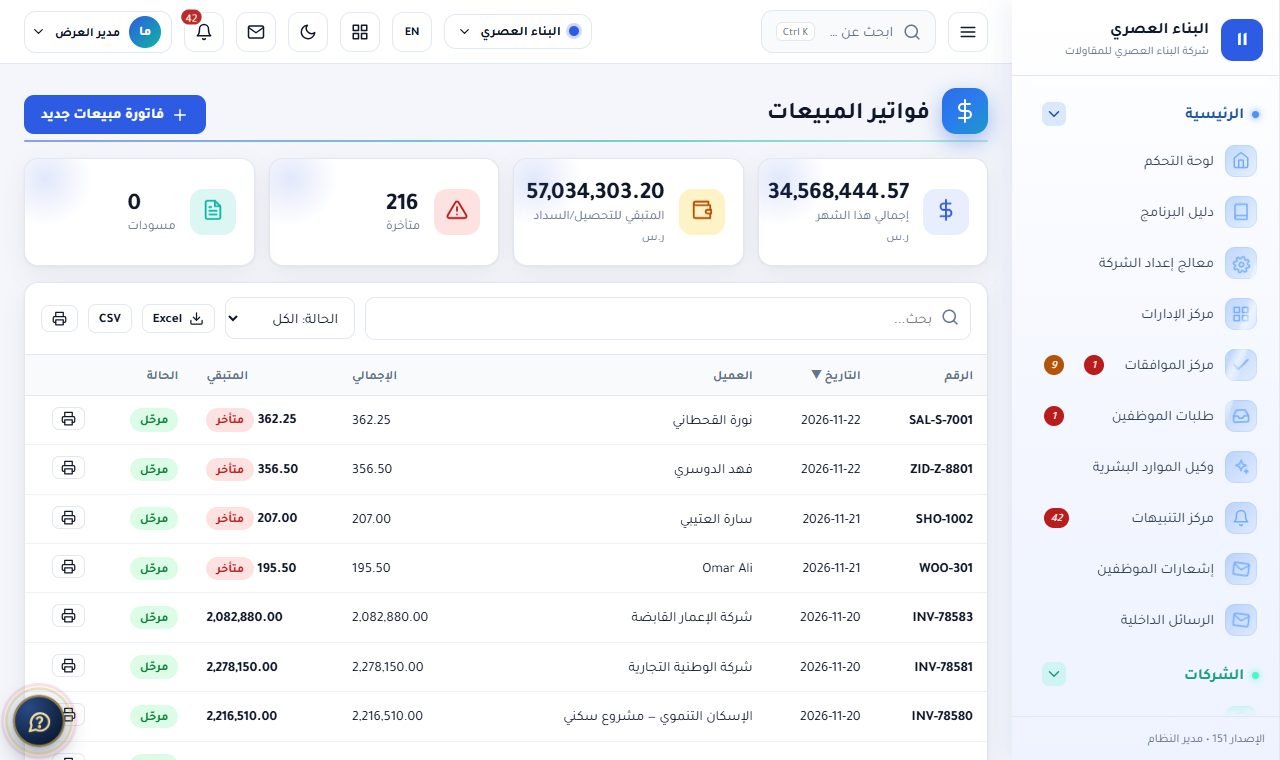
| Quotation → Sales Order → Invoice | Convert a document to the next with one click; a posted invoice generates the entry and deducts inventory. |
| Purchasing | Purchase request → Purchase order → Purchase invoice. |
| Returns | Reverse a sales or purchase invoice. |
| Customers & Suppliers | Their data, balances and account statements. |
| Share & Print | Any document can be printed, saved or sent via WhatsApp/Telegram/email. |
Inventory
- Items, warehouses, receipt and issue movements and stocktaking, plus bills of materials and manufacturing orders for factories.
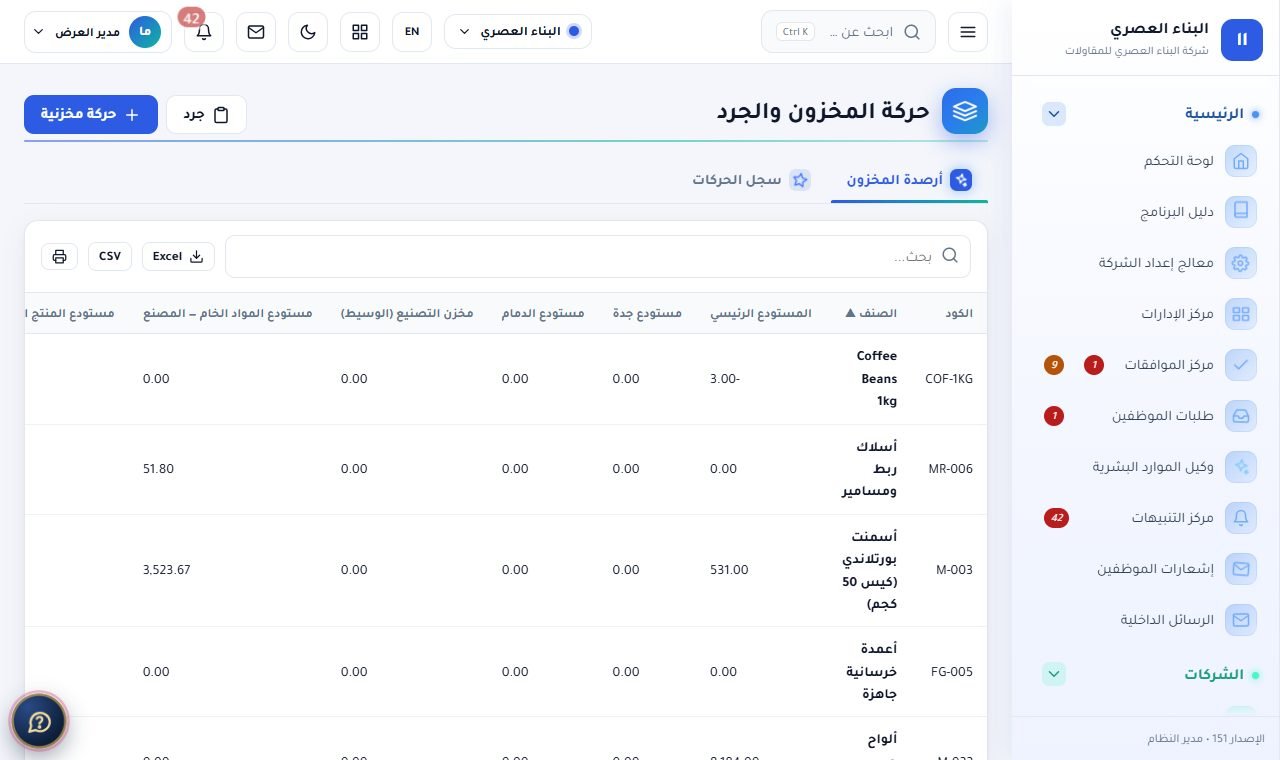
Inventory & Warehouses
All warehouse settings, operations, reports and stocktaking are in the "Warehouse Center", and balances update instantly with every sale, purchase and return.
Settings
| Function / button | What it does |
|---|---|
| Item catalog | A group tree with unlimited levels like the chart of accounts; item codes are generated from the group code. Tree or cascading-list view, with drag and drop to move. |
| Units & conversion | Define your units; each item has a base unit and alternate units with a factor (carton = 12 units), sale and purchase price and barcode. Stock is always kept in the base unit. |
| Sections & categories | Administrative sections and main/sub categories for reporting. |
| Item templates | A ready template (group, category, units, tracking) to create an item in one click. |
| Batches & expiry | For tracked items: batch number and expiry date with the purchase invoice or receipt, balance per batch (first expiry, first out), and an alert before expiry. |
| Excel import | A ready template; it recognises Arabic and English column names, creates groups, units and categories, and posts opening balances for new items in one entry. |
Operations & reports
- Stock moves & count: receipts, issues, transfers between warehouses, adjustments, opening balance, and counting actual quantities.
- Reorder: items below the level, with a suggested or automatically created purchase request.
- Invoices and POS accept any unit (carton or piece), and a carton barcode adds a carton.
- Reports: item analysis by group/section/category, item balances by catalog with unit equivalents, expiring soon, inventory valuation (moving average with FIFO and last-cost comparison), item card, movement summary, slow-moving items and ABC analysis.
Purchasing
A full purchase cycle from request to payment.
The cycle
- Purchase request (goes through approval) → supplier quotations to compare → purchase order.
- A goods receipt from the PO brings the goods into stock, then the purchase invoice with three-way matching (order, receipt and invoice) and alerts for price and quantity differences.
- Supplier payment schedule and payables aging, with withholding tax on payment.
- Reports: purchases by supplier and item, purchase prices, open purchase orders, received-not-invoiced, and supplier performance.
Point of Sale, Commissions, Credit & Stores
Sales tools that complete the sales cycle (quotation → sales order → invoice).
Tools
| Function / button | What it does |
|---|---|
| Point of sale (cashier) | Fast selling by search or barcode, shifts with opening, closing and cash matching, hold and resume invoices, cash and card payment, and a receipt with a QR code. Every sale is a posted invoice with its entry. |
| Credit limit & payment terms | A credit limit and payment term per customer; posting an invoice over the limit is blocked unless approved. |
| Sales commissions | Rates for sales reps and commission calculated on sales and collections. |
| Price lists & loyalty | Customer price lists by percentage or special item price, and loyalty points. |
| Installments & collection | Invoice installments and collection reminders for overdue items by email and WhatsApp. |
| Store integrations | Import Shopify, WooCommerce, Salla and Zid orders as draft invoices (needs the connection details from each platform). |
Manufacturing
From the bill of materials to the finished product at its actual cost.
The cycle
- Bills of materials (BOM): each product's components and quantities.
- Production order: customer, delivery and cost center, issuing materials to a work-in-progress warehouse, and recording labor, equipment and expenses.
- The actual cost is charged to the finished product on receipt and compared with the standard cost, with scrap and returns recorded.
- Reports: production orders and their cost, material consumption, scrap, labor, equipment and late orders.
Analytics and Reports Center
Interactive dashboards that compare performance with previous years, and an analysis studio to build your own report.
Usage
- Choose the dashboard: finance, HR, sales, purchasing, and the period.
- Click any bar or part of a chart to filter the rest of the dashboard by it.
- Analysis Studio: drag dimensions and measures to make a pivot table, save your view, and export it.
- The "Interactive Analysis" button is also available in the additional financial reports.
Vehicles
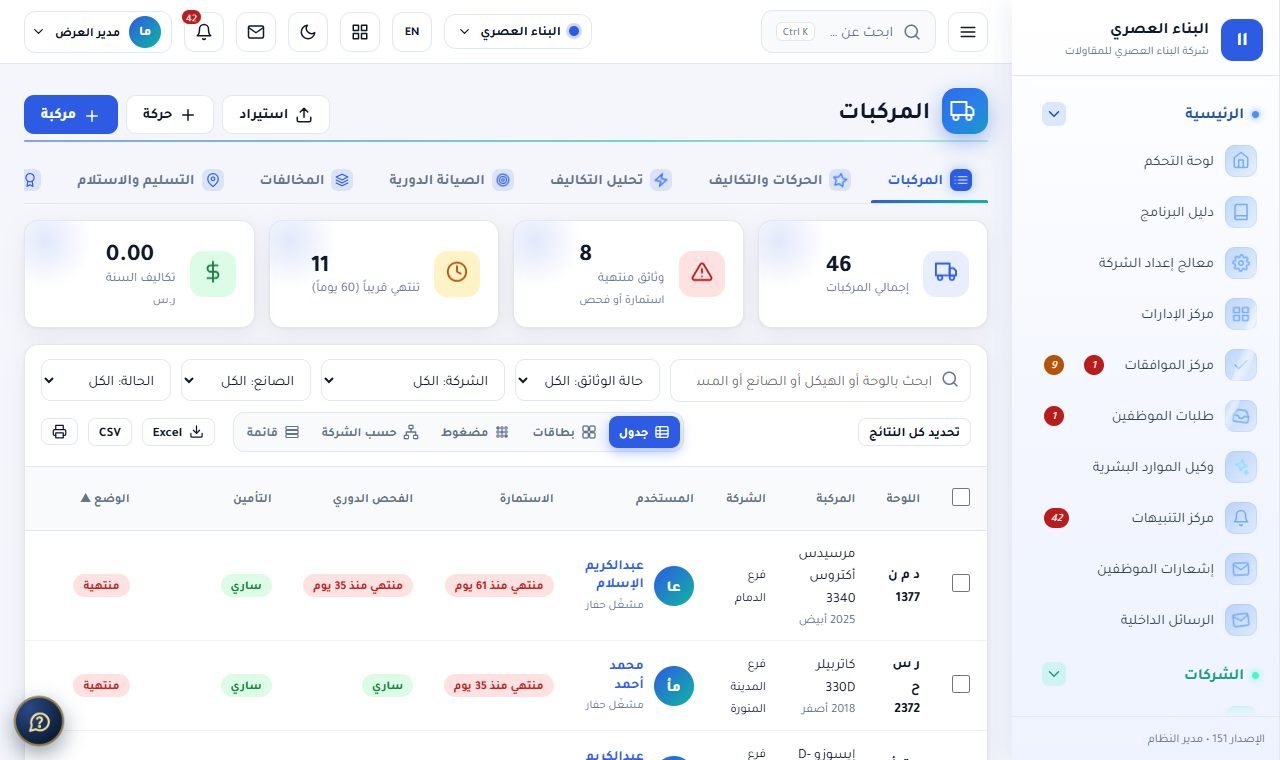
The register of vehicles, their documents, maintenance and expenses, and alerts for registration and insurance expiry.
The Page
- Open the vehicle file to add maintenance, fuel, violations and attachments, and you will receive alerts before documents expire.
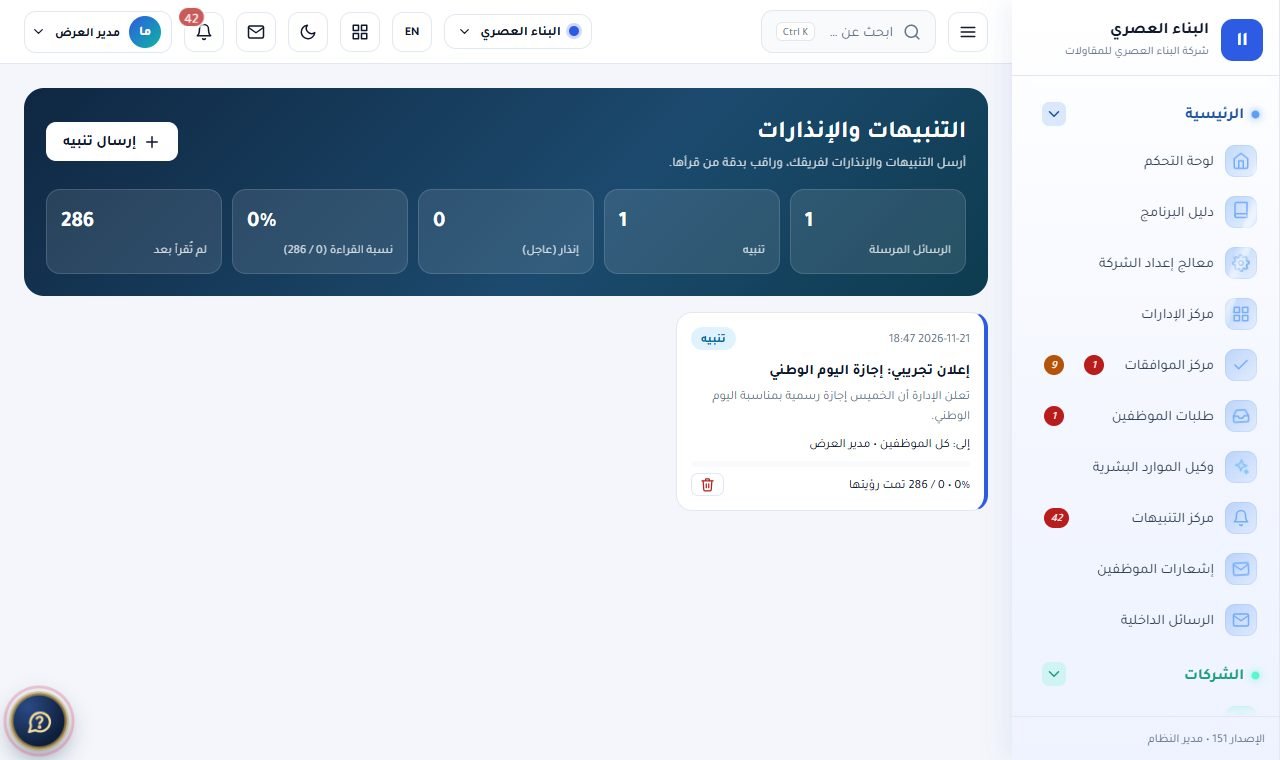
Alerts and Notifications
An alert system that tells you what needs your attention and lets you issue warnings to employees.
Types
| Function / button | What it does |
|---|---|
| Alerts Center | Expiring Iqamas, documents and contracts, repeated lateness and more, sorted by priority. |
| Alerts & Warnings | Send an alert or warning to an employee or group, and the employee confirms receipt from their portal. |
| Employee Notifications | What employees send (automatic attendance, requests, fingerprint registration) reaches you as a notification. |
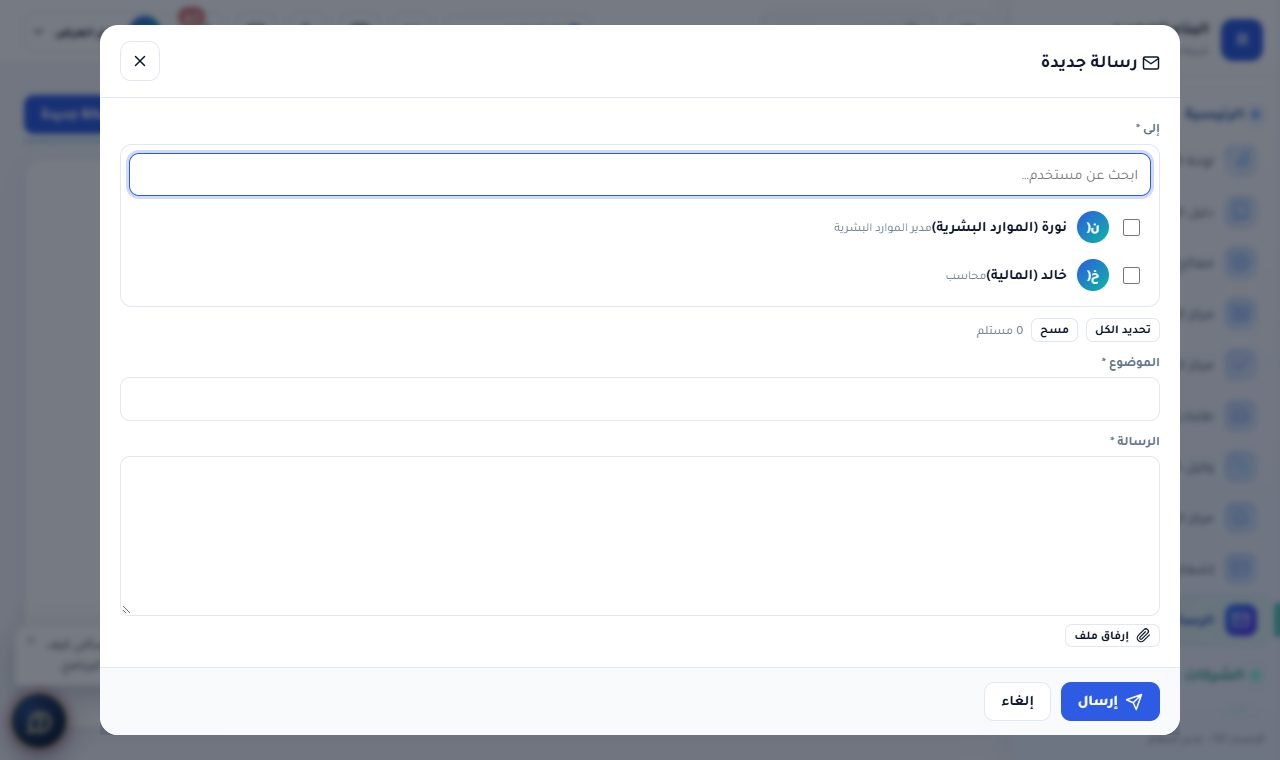
Internal Messages
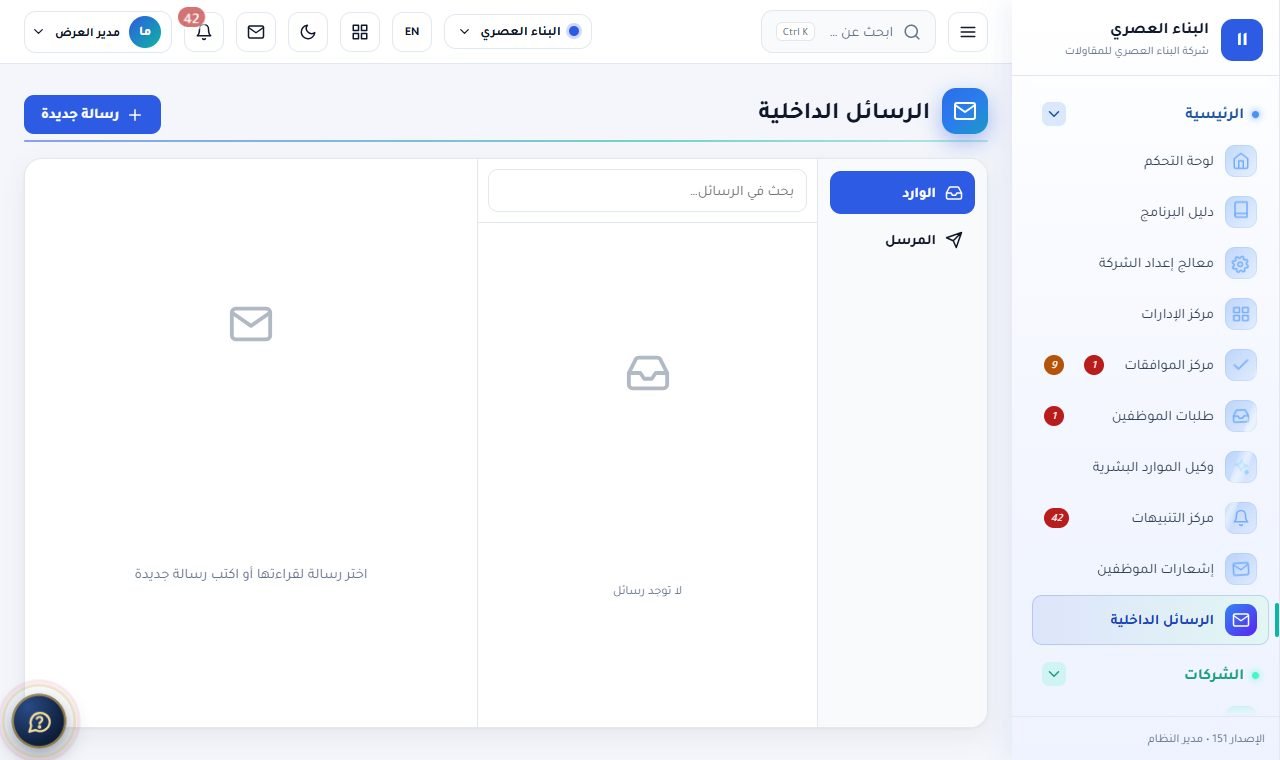
An alternative to email for communication between users inside the system: inbox, sent, conversations, replies and attachments.
Usage
- Click New message, choose one or more recipients, write the subject and text and attach what you like (up to 3 files, 2MB each).
- New messages appear with a red counter on "Internal Messages" and a sound alert. A reply is added to the same conversation.
- Each user sees only their own messages (sent to or from them), and deletion affects only your own mailbox.
Smart Assistant
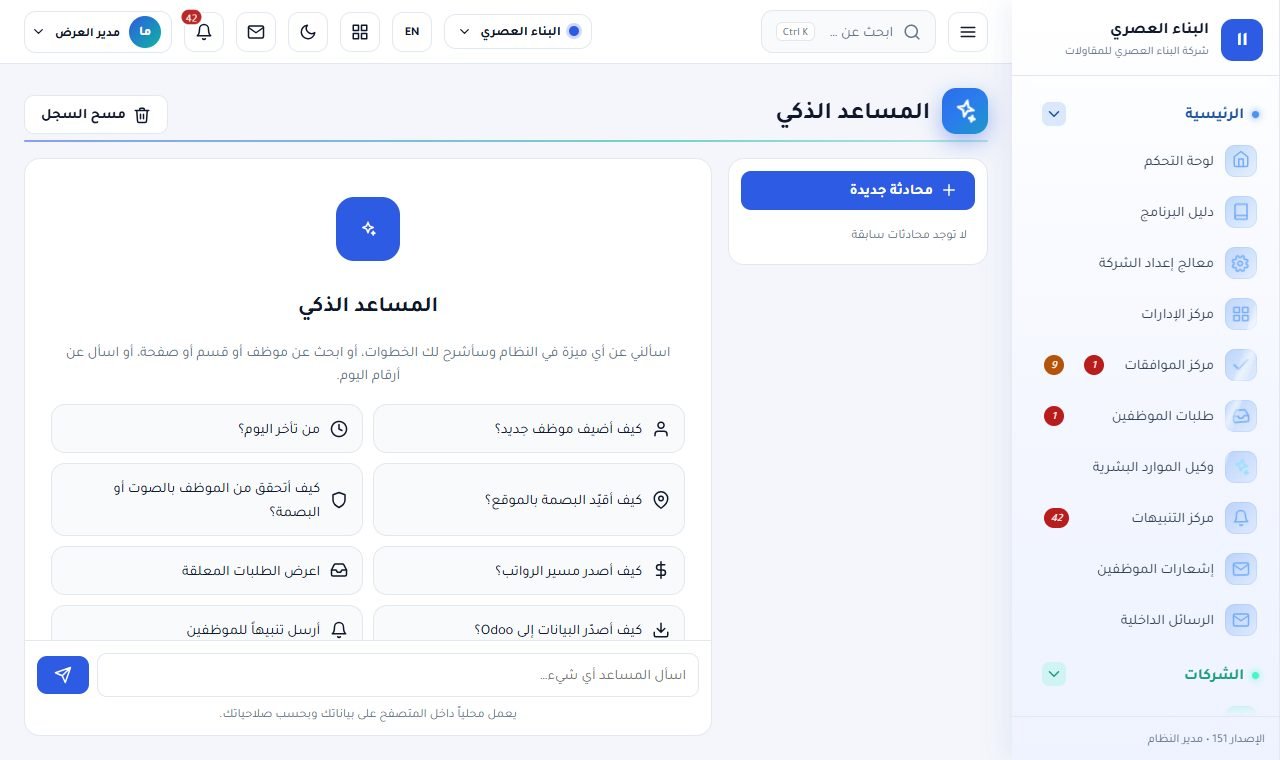
Ask about anything in the system: how to perform a step, where to find a page, or employee/department data. It works locally without internet, and can be linked to online AI platforms.
Usage
- Type your question or choose from the suggestions; it explains the steps and provides direct navigation buttons to the page, and answers numeric questions from your data according to your permissions.
- If the administrator enables an AI platform key (Settings → AI), an "Answer mode" bar appears so you can choose between local and any online platform.
- Conversations are stored in your browser only and can be cleared.
Assistants: Usage, Smart and Sales
Three assistants that answer you instantly.
Their Types
| Function / button | What it does |
|---|---|
| Usage Assistant (pulsing button) | At the bottom corner of the screen: ask "How do I record a receipt voucher?" and it explains the steps and opens the page, and suggests questions based on the open page. |
| Smart Assistant | Answers from your company's data ("Who was late today?") and drafts letters — the decision is yours. |
| Al-Shamel Assistant (website) | On the visitors' home page: introduces the system and its value and calculates the savings; its settings are managed from "Website Bot". |
Arabic and English
The whole system is in Arabic and English: pages, messages, printouts and Excel files.
Usage
- Click EN at the top of the screen (or on the sign-in screen) to switch to English, and عربي (Arabic) to go back. The browser remembers your choice.
- Your data written in Arabic (customer, department and title names…) appears in English once you enter their names on the "English Names for Data" page — manually or by automatic translation if AI is enabled.
- The employee has an English name in their file, the account has an English name on the account screen, and the establishment has an English legal name in Settings.
Sharing: WhatsApp, Telegram and Email
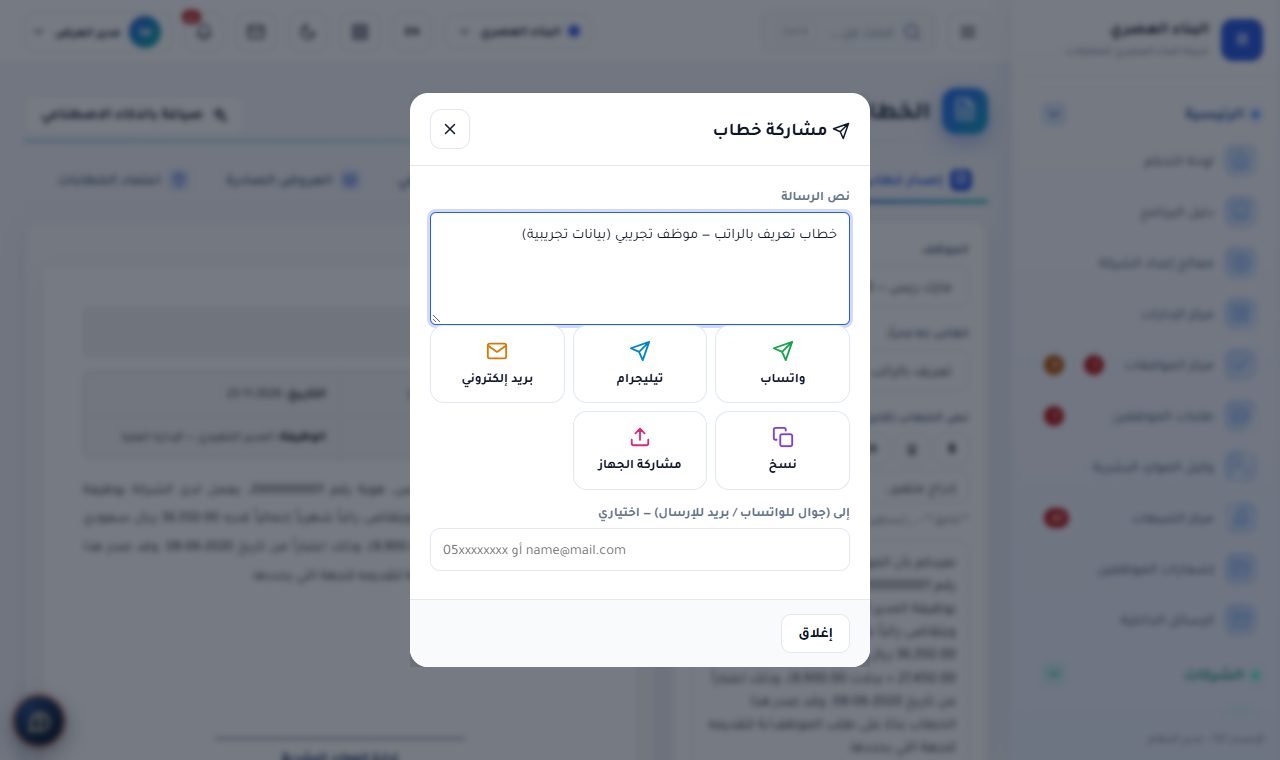
The Share button appears when creating a new company, when issuing login credentials, and in the preview of printed documents.
Sharing Methods
| Function / button | What it does |
|---|---|
| Opens a chat with a ready message (if you enter the mobile number it is sent directly to it). | |
| Telegram | Opens the share window with the text and link. |
| Sends via the configured SMTP server (with the attachment); if not configured, it opens the mail app on your device. | |
| Copy / Device share / Download file | Copy the text, or use the native device share (carries files on mobile), or save the file and then attach it manually. |
Settings
Grouped in a side menu organized by purpose; click a section to show its title and description.
Company
| Function / button | What it does |
|---|---|
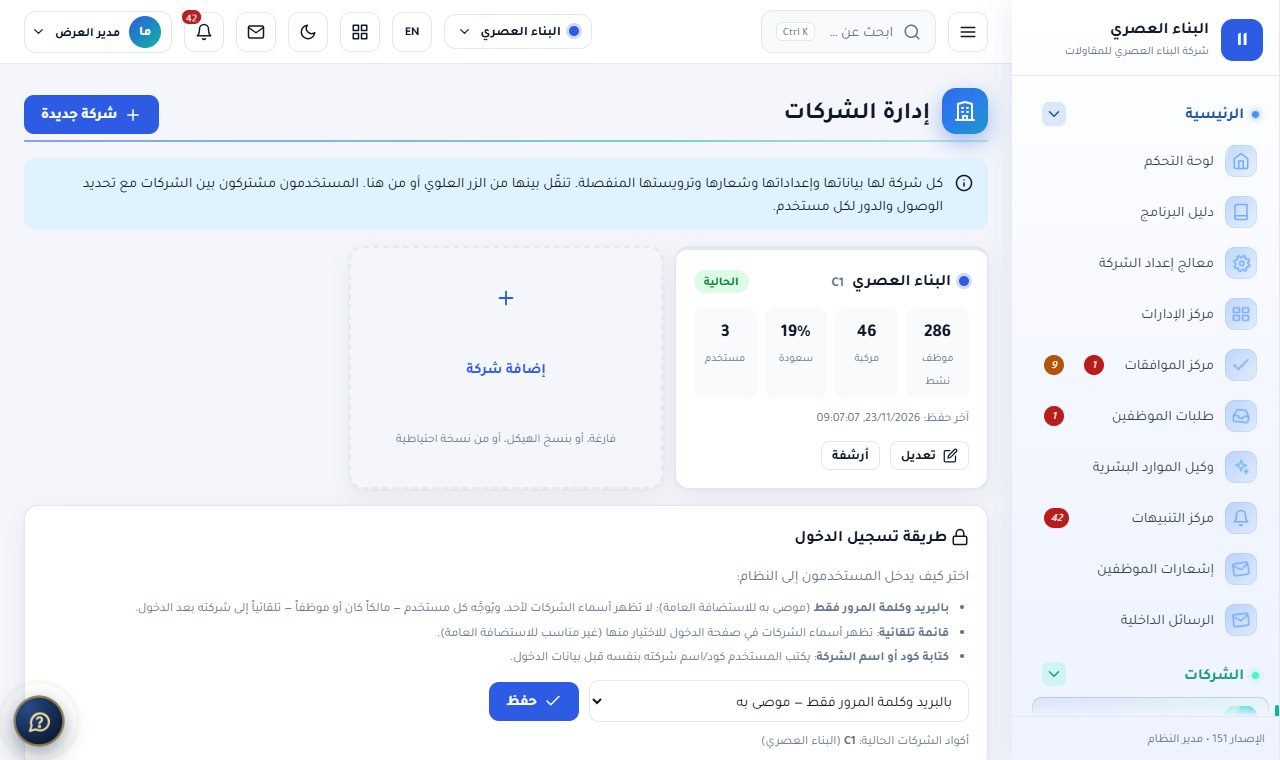
| Company Data | Name, logo, address, registration, tax number and bank. |
| Companies | Add a new company (blank, by copying the structure, or from a file) with its own sign-in code. |
| Printing & Documents | Letterhead, footer, stamps and document appearance. |

Operations and HR
| Function / button | What it does |
|---|---|
| Work Hours & Leaves | Working hours, leave and lateness policies. |
| Shifts | Define shifts and assign them to employees. |
| Punch & Locations | Attendance locations, their range, and the biometric verification matrix. |
| Employee Alerts | Configure what employees are alerted about. |
| Payroll & GOSI | GOSI rates, allowances and payslip templates. |
Interface and Modules
| Function / button | What it does |
|---|---|
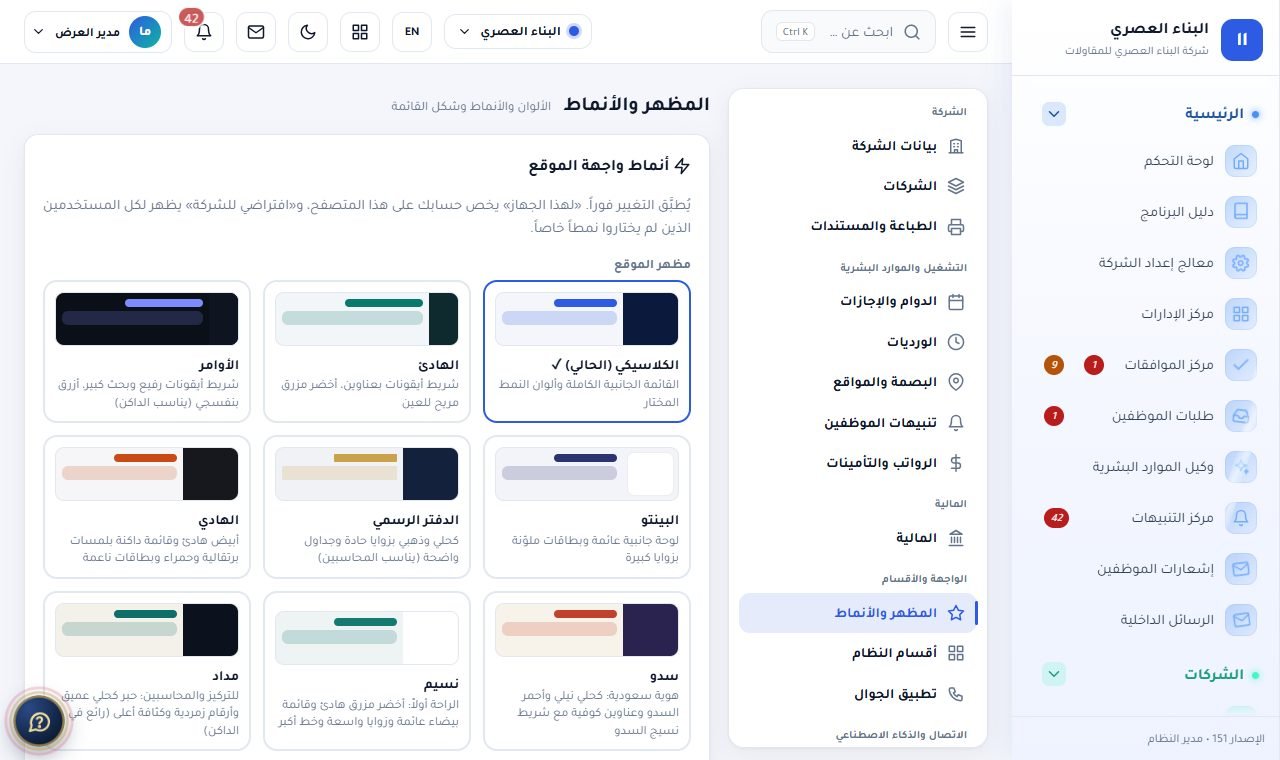
| Appearance & Styles | Colors, corners, density and menu style, for your device or as the company default. |
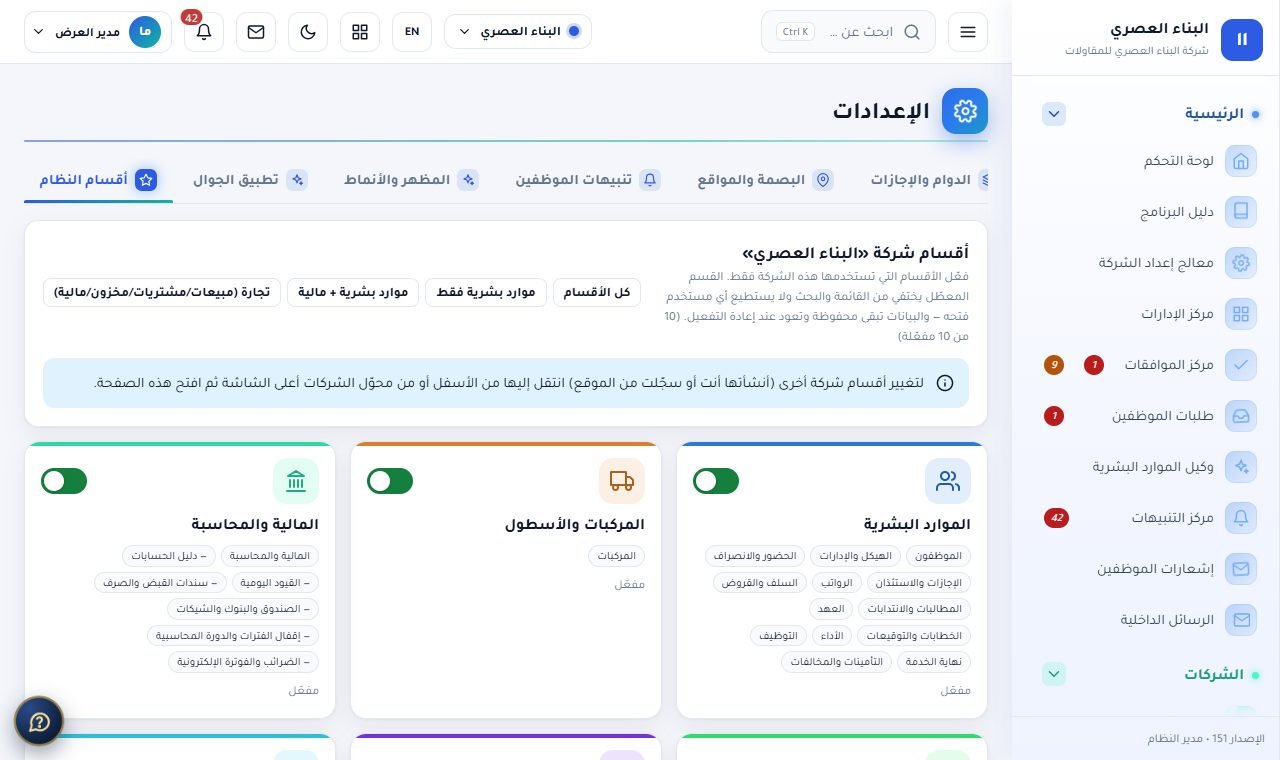
| System Modules | Hide unused sections (finance, sales, vehicles…). |
Email (SMTP) and AI
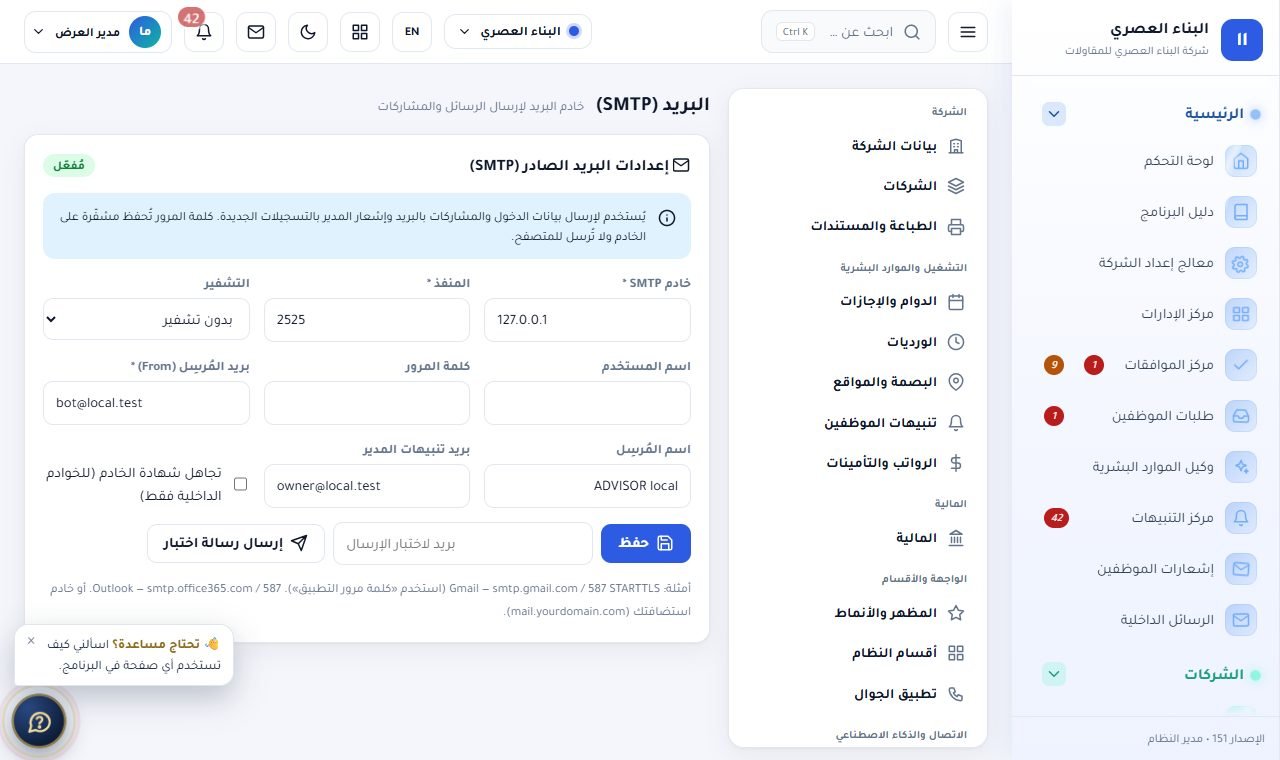
- Email (SMTP): server, port, encryption, username, password and sender email; the "Send test message" button verifies the setup. It is used to send shares and notify the administrator of new sign-ups.
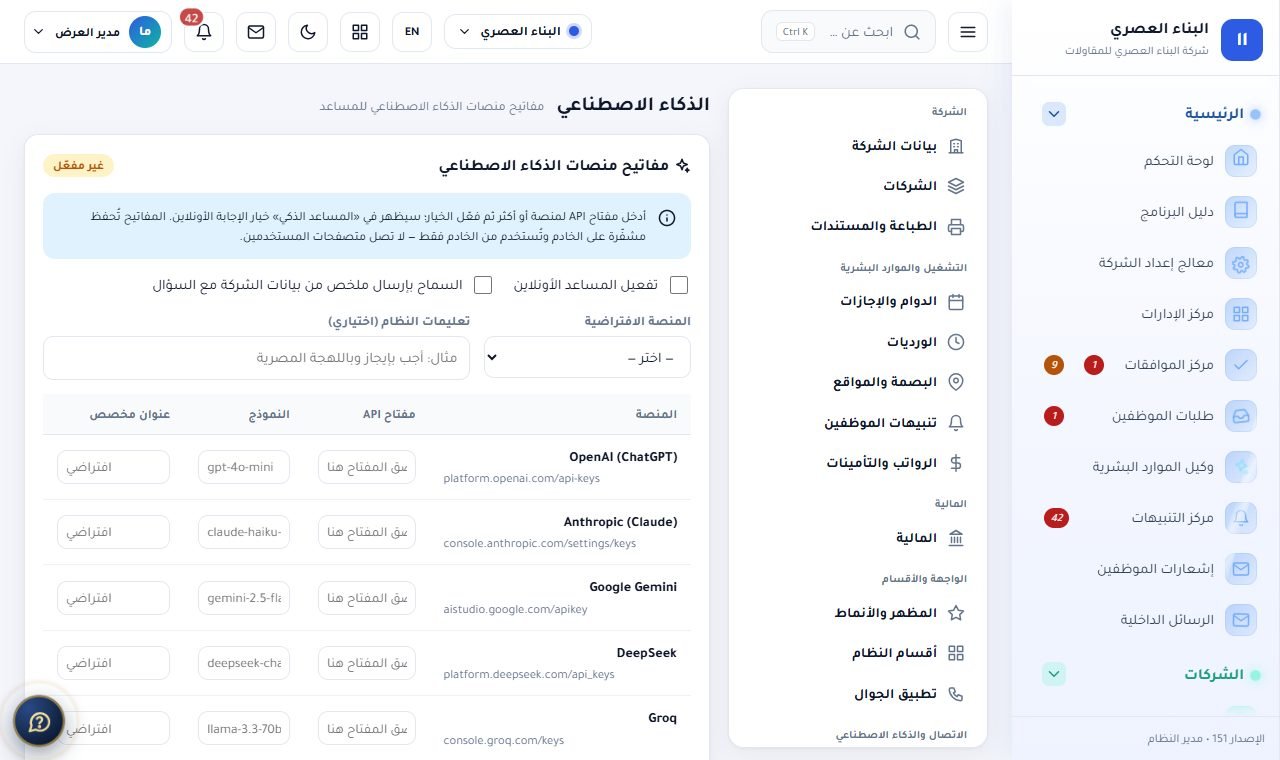
- AI: enter an API key for any platform (OpenAI, Claude, Gemini, DeepSeek, Groq, Mistral, xAI, Perplexity, OpenRouter, Together or a local server), choose the default, and enable the online assistant.
- Secrets are stored encrypted on the server and never reach users' browsers; both pages are for the main System Administrator only.
Security and Data
| Function / button | What it does |
|---|---|
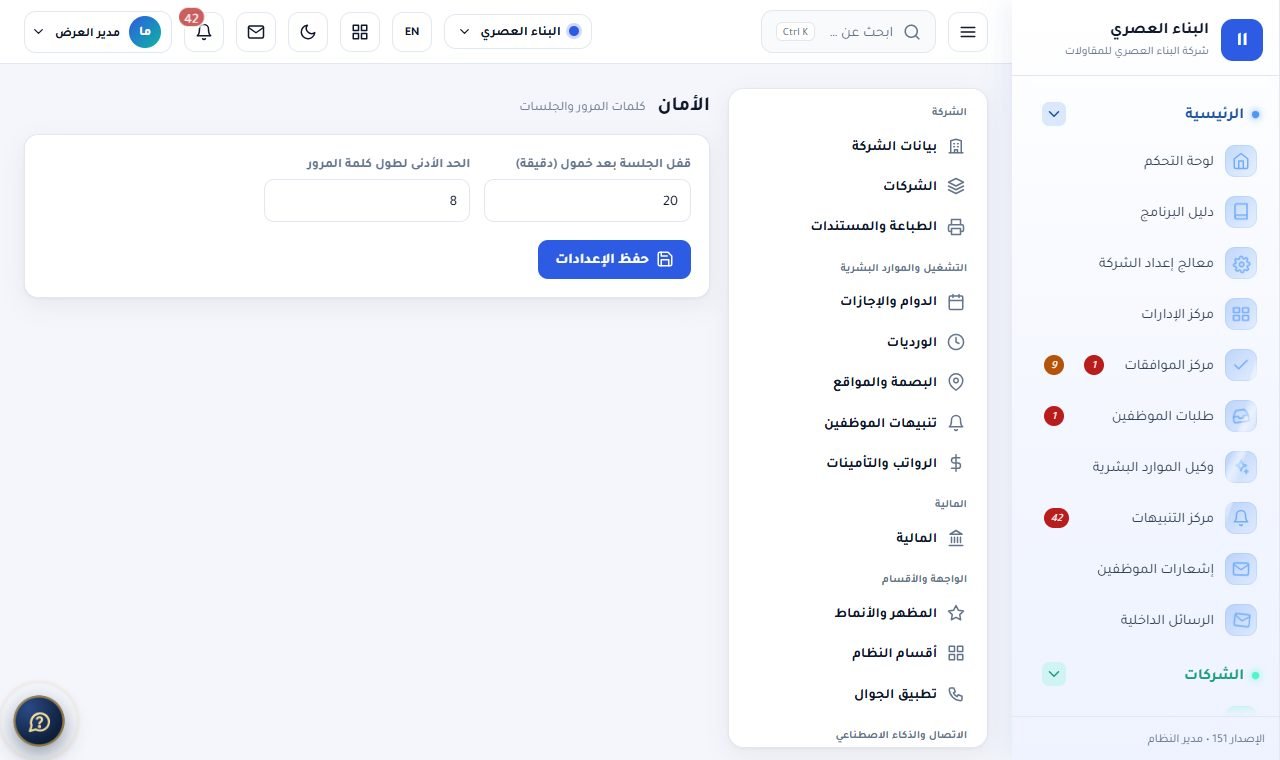
| Security | Idle timeout and password policy. |
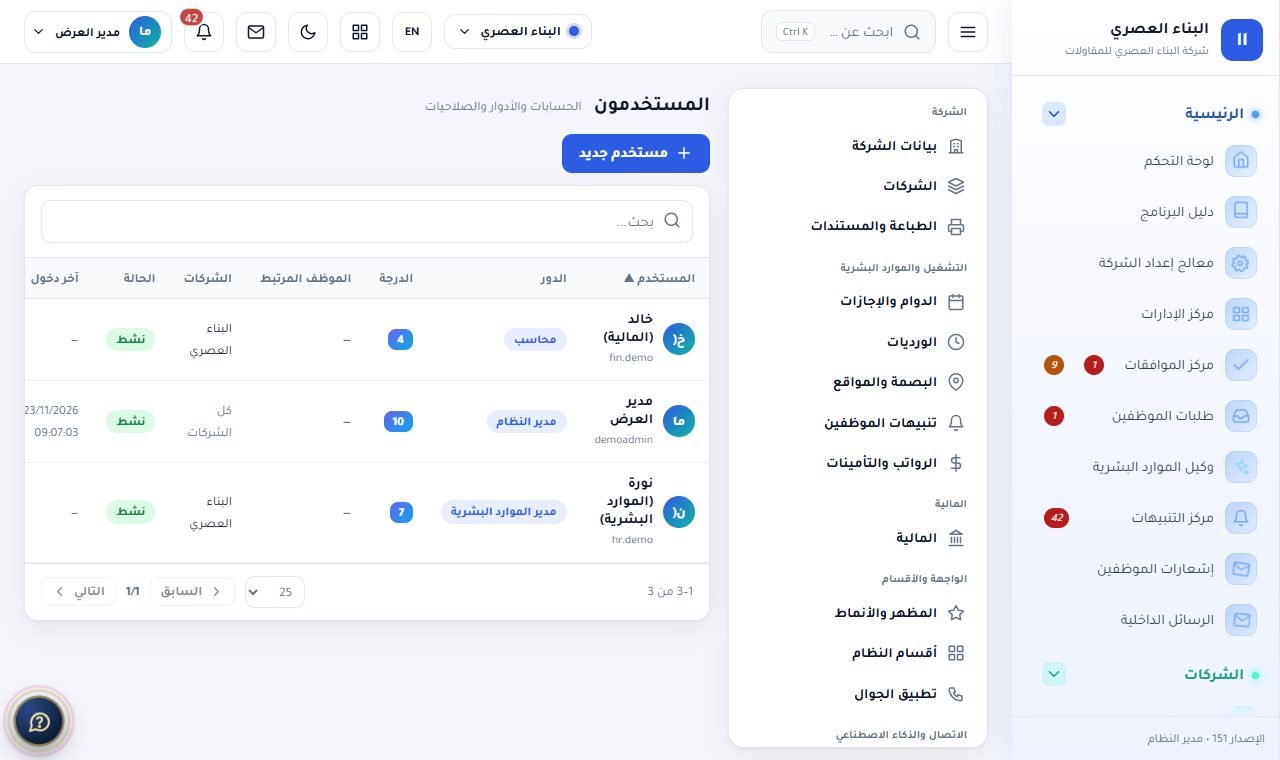
| Users | Add users, their roles, permitted companies, and link them to employees. |
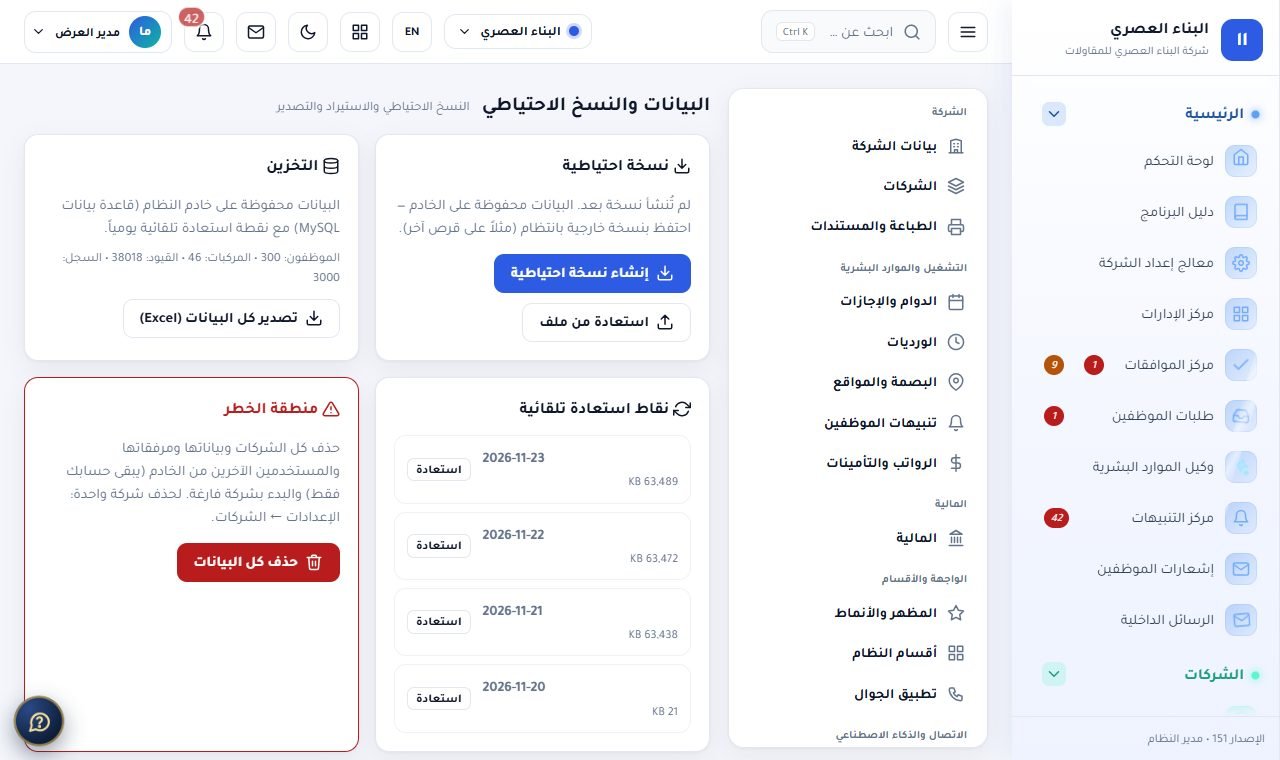
| Data & Backup | Manual backup (optionally encrypted) and restore, export/import, and automatic daily restore points. |
Speed and Security
How the system stays fast and secure.
What You Should Know
- Staged loading: the screen appears in under a second, and each module's data (Finance, Attendance, Payroll, Vehicles) is loaded when you open it, then completed in the background.
- Trusted device: on your personal device only, it keeps a copy of the data after sign-out so the next sign-in is instant.
- Two-factor authentication (2FA) with an authenticator app, an audit log for every operation, and a daily backup.
- Screen lock from your menu when stepping away, and automatic sign-out after an idle period set by the administrator.
Integration and Reports Center
Data exchange with other systems, audit logs and comprehensive reports.
Pages
| Function / button | What it does |
|---|---|
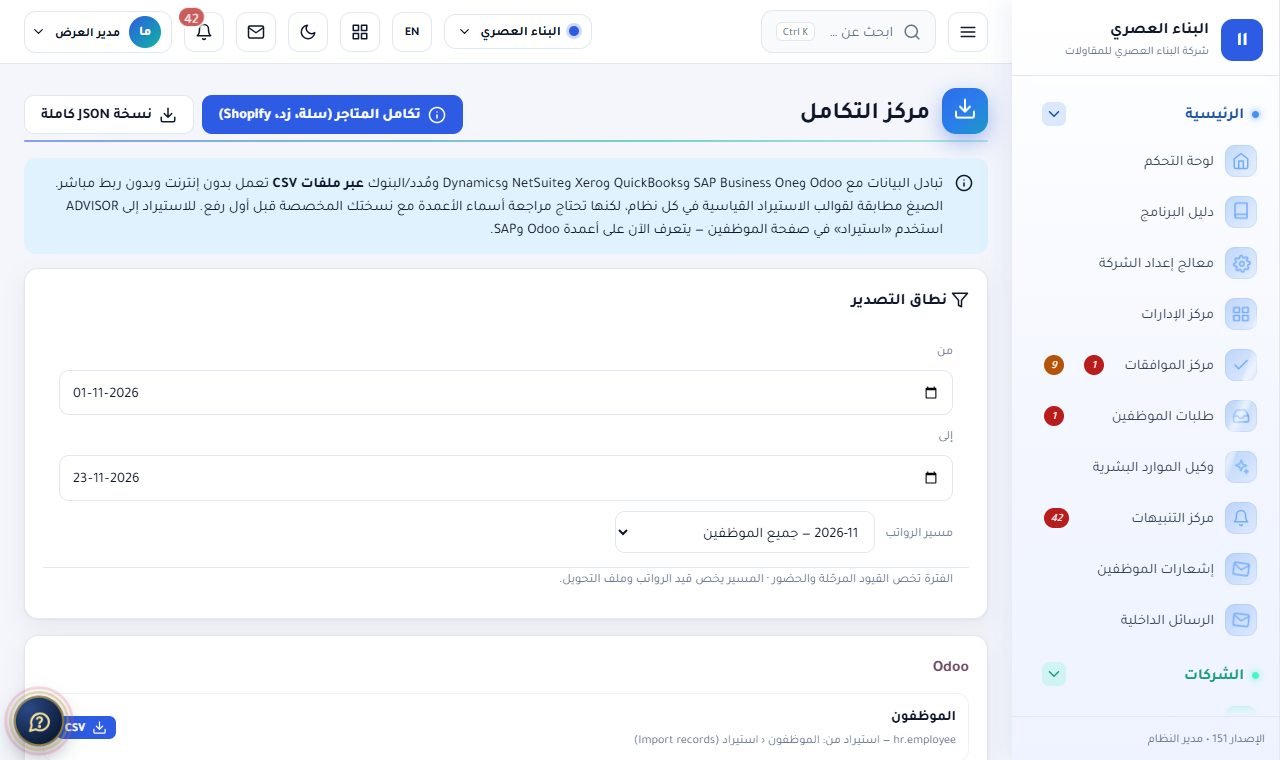
| Integration Center | Export payroll entries and transfer files in Odoo, SAP, QuickBooks and Mudad formats, map accounts, and import using their column names. Exchange is through files, not a direct connection. |
| Reports Center | Exportable employee, attendance, payroll and finance reports. |
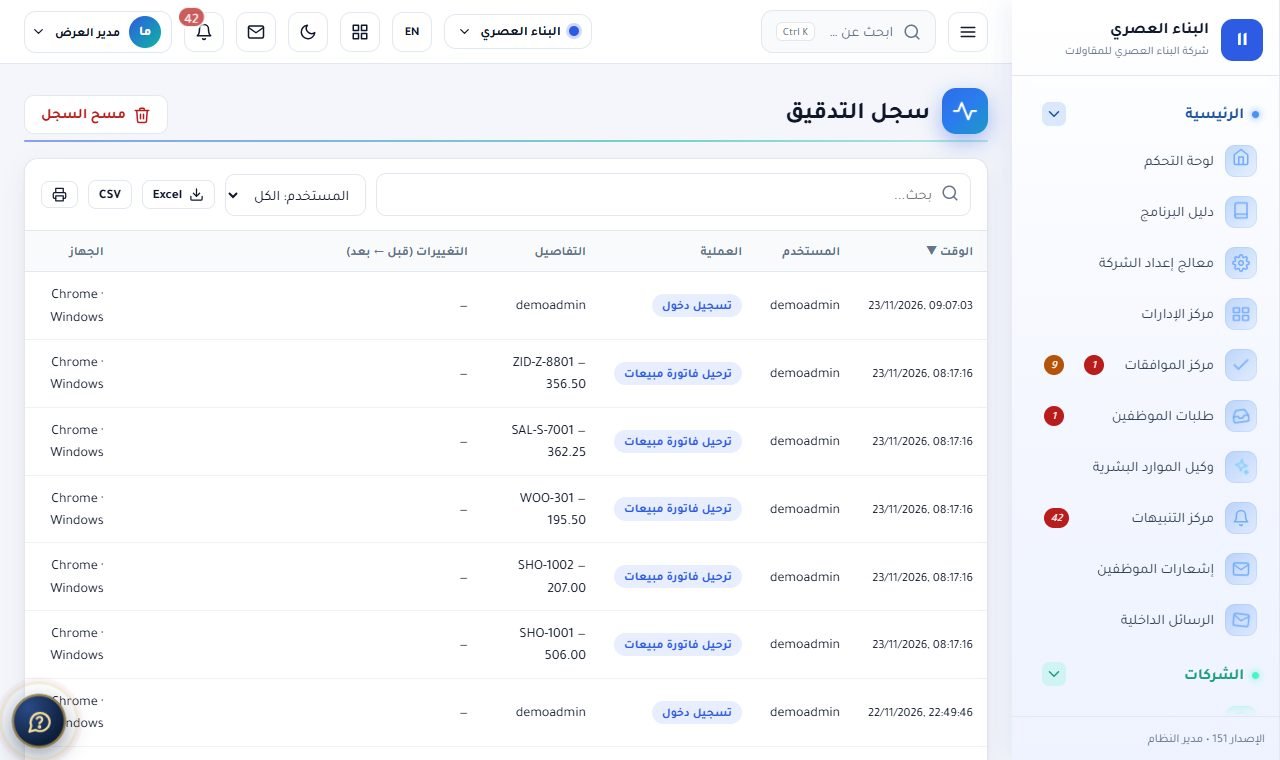
| Audit Log | Who did what and when for every operation in the system. |
Frequently Asked Questions
Quick answers to the most common situations.
Problems and Solutions
- The system is slow on first sign-in: the first sign-in on a new device loads the company data; after that it opens in under a second. Enable "Trusted device" from your menu on your personal device to keep it fast after signing out.
- A page says "Loading section data": normal — each section's data is loaded when you open it and the page appears automatically within moments.
- The entry was not posted and shows "Sent for approval": the journal entries approval chain is enabled; follow it up from "Financial Approval Requests".
- I cannot approve a stage: the person who prepared the payroll run or entry does not approve it, and no person approves two stages (this can be allowed from "Financial Approval Chains & Signatures" for single-user businesses).
- I want the program in English: the EN button at the top of the screen. To show your customers' and departments' names in English, complete the "English Names for Data" page.
- A section does not appear for me: your role's permissions do not include it, or the administrator hid it from Settings → System Modules.
- I forgot my password: the System Administrator resets it from Settings → Users (and for trials, from "Login credentials").
- Fingerprint does not work: it requires an https connection and a domain name (it does not work on an IP address) and a device that supports biometric lock.
- The free trial has ended: the System Administrator extends it from "Trials & Requests".
- Email is not arriving: check Settings → Email (SMTP) and then send a test message.
- Any other question: ask the "Smart Assistant" inside the system.